Making a single card payment
Open the Client window
Open the Search window

1: Click the Search button in the menu – the Search window will open.
Select a client
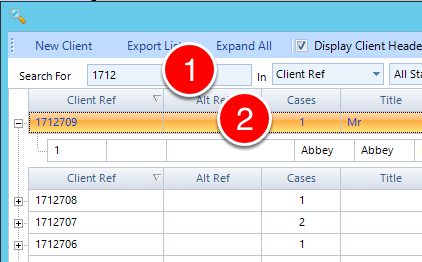
1: Enter some search criteria or press Enter to display all.
2: Double click on the required client – the client window will open.
Enter offer and debt details
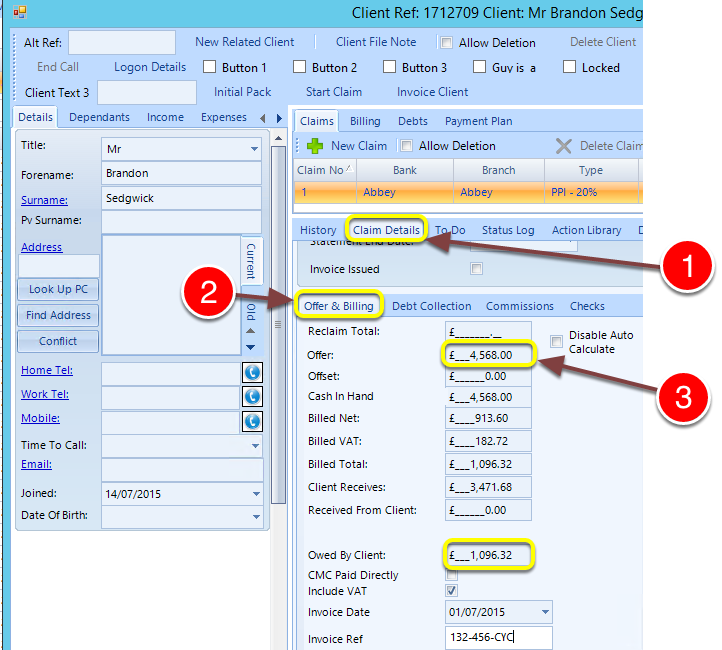
1: Click on the Claims tab.
2: Click on the Offer & Billing tab
3: Enter the Offer amount – the other fields will auto-calculate and the Owed By Client amount will be used for the billing schedule.
Open the Payment window
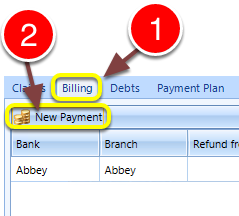
1: Click in the Billing tab.
2: Click the New Payment button – the New PAyment window will open.
Select Card
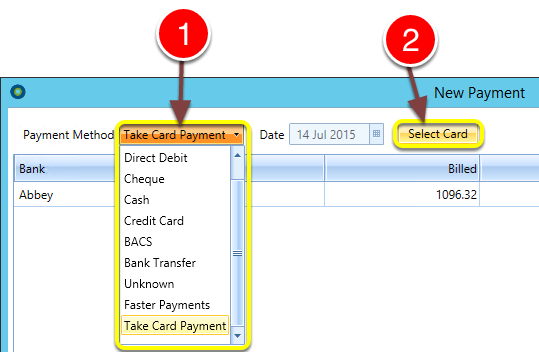
1: Select Take Card Payment from the drop-down list.
2: Click the Select Card button – the Card Details window will pop-out.
Add Card Details
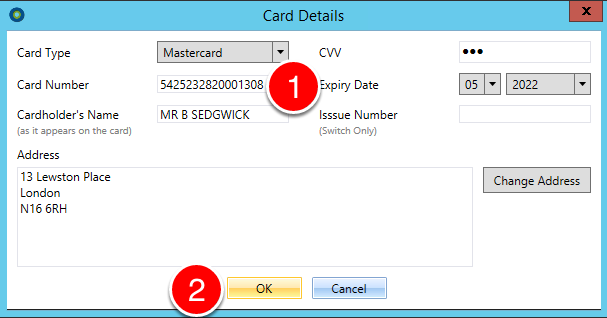
1: Enter all the Card Details.
2: Click OK – you will be redirected to the New Payment window.
Take the Payment
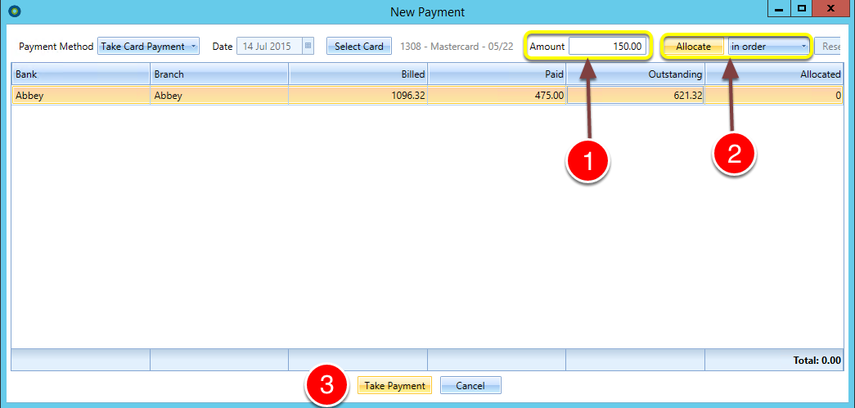
1: Enter the payment amount.
2: (For multiple debts, select the allocation method then) Click Allocate.
3: Click Take Payment – the payment results will be displayed and recorded in the, schedule pane, the Offer & Billing tab and the client’s History list.
Introduced in version number 2015.8.7.1847 – 12/08/2015