How to show/hide a 2nd person in the client’s claim form
Open the Config window
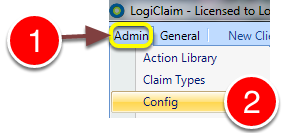
1: Click Admin from the Menu.
2: Select Config from the drop-down menu – the Config window will open
Change the setting
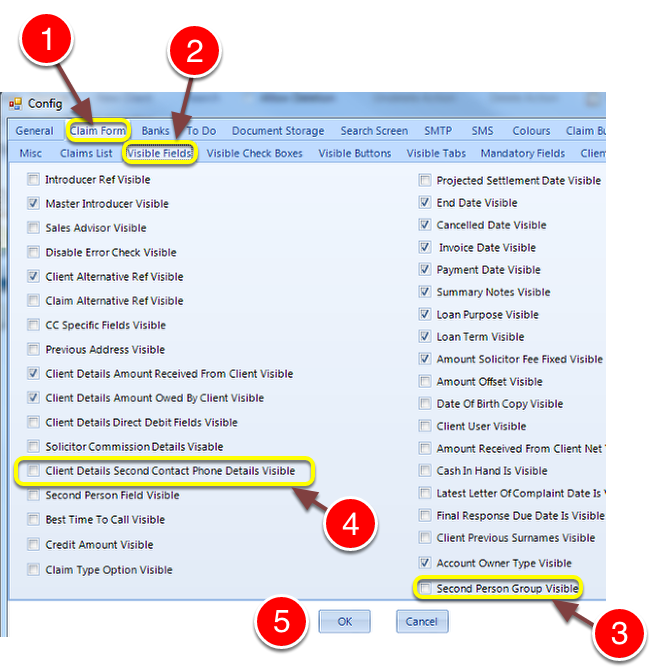
1: Click the Claim Form tab – the Claim form window will open.
2: Click the Visible Fields tab – the Visible Fields window will open.
3: Tick/untick the tick box to show/hide the 2nd person in the claim form.
4: Tick/untick the tick box to show/hide the 2nd person contact details.
5: Click OK to Save and close the Config window.