How to Add Multiple Banks for Multiple Claims on to a Letter
Open the Document Library
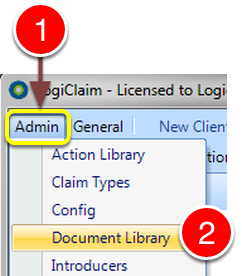
1: Click Admin from the menu.
2: Select Document Library from the drop down list – the Document Library will open.
Create a New Document
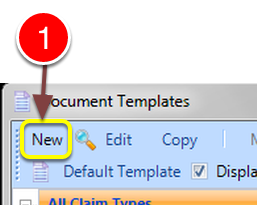
1: Click New – a new Document Template will open.
Complete the Details
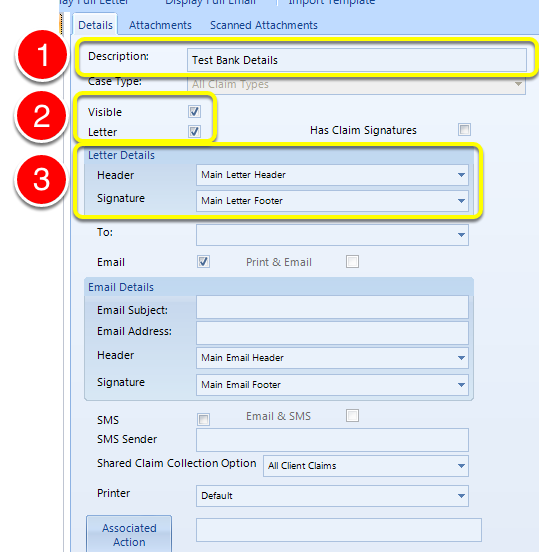
1: Type a Description.
2: Make the letter visible.
3: If required, choose a Header and Footer.
Open the Word Document
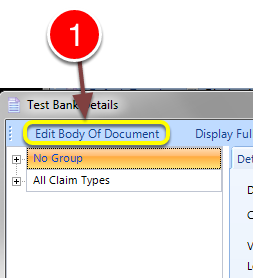
1: Click Edit Body Of Document – Microsoft Word will open.
Add the Fields
Type the letter:
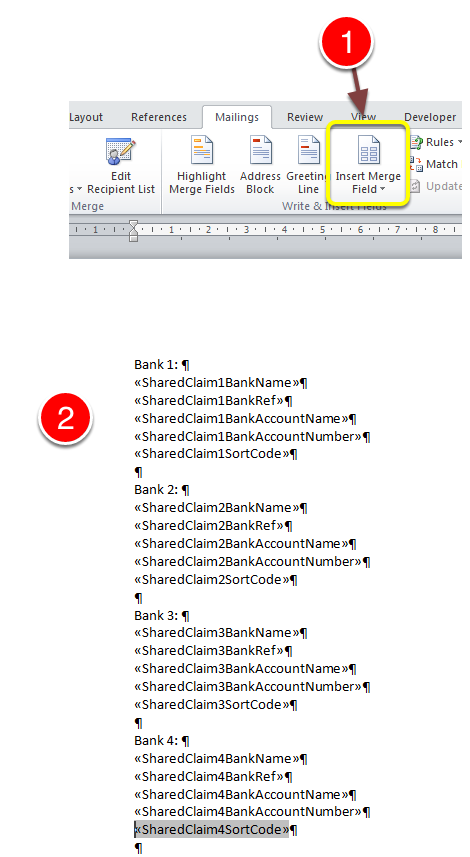
1: Using the Insert Mailmerge Field button, add the mailmerge fields for the Banks where required.
2: Each field number relates to a Claim number. (There can be up to 20).
When complete, save the Microsoft Word document and close it.
Save the Data

1: Click OK to save the data and close the window.