How to Change a Document Footer
Open the Document Library
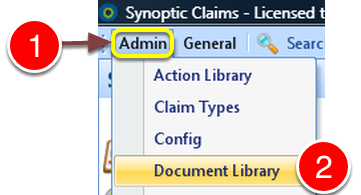
1: Click Admin from the Menu.
2: Select Document Library from the drop down list – the Document Library will open.
Select Document for Editing
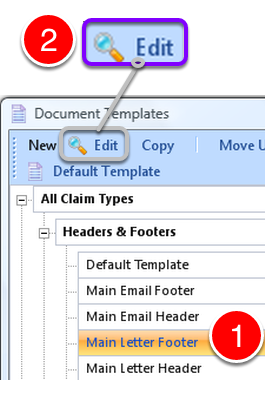
1: Select the Document for Editing.
2: Click Edit – The Edit Document window will open.
Open the Body of the Document in Microsoft Word
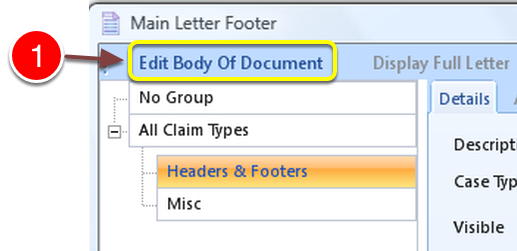
1: Click Edit Body of Document – Microsoft Word will open.
Edit the Footer
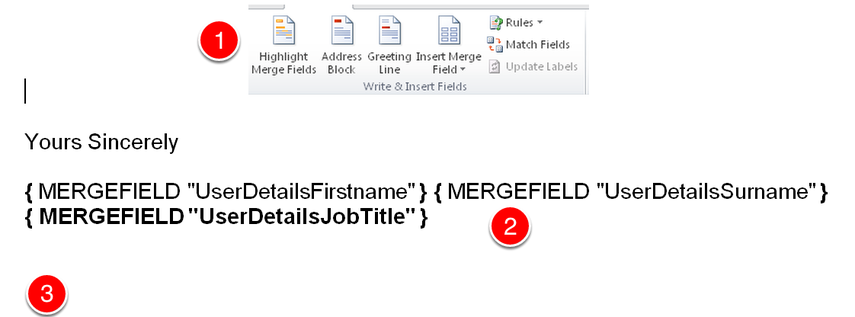
1: Use the Mail Merge controls to add Mail Merge Fields.
2: Edit the body of the footer, rearrange the order or change the text.
3: If required, you can even type below the footer. This can include a company name, telephone number, FSA messages or anything else that is relevant that is not on the printed letter head.
Press CTRL+S to save changes and then close Microsoft Word.
Close window

1: Click OK to close the window.