Setting up an email to contain an attachment
Info
When this Document is run, the selected document will be inserted as email attachment.
Open the Document Library
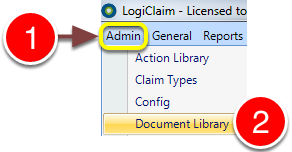
1: Click Admin in the menu.
2: Select Document Library from the drop-down menu – the Document Library will open.
Open the required Document
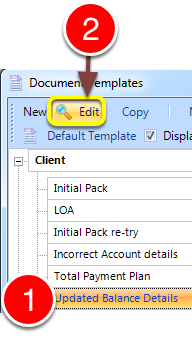
1: Select the required email template.
2: Click Edit – the Document window will open.
Add the Attachment
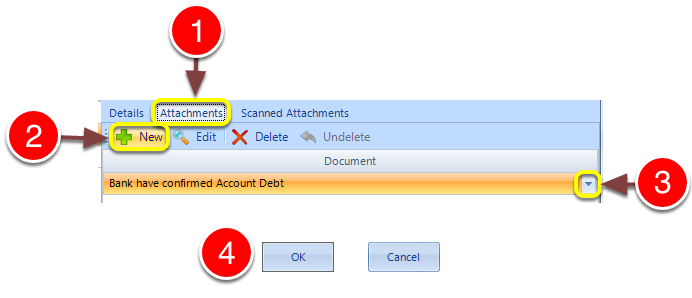
1: Click the Attachments tab. (This tab is grayed out for non-email templates.)
2: Click New – a new line will be added.
3: Select the required document from the drop-down to attach to the email.
4: Click OK to save and close the window.