How to Add or Delete a Sub Introducer
The Sub Introducer must already be set up as an Introducer. To see how to do this, click here.
Open the Introducers window
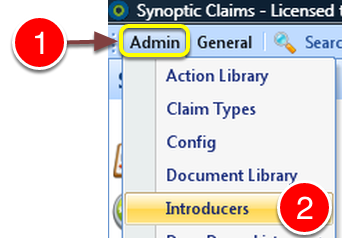
1: Click Admin from the menu.
2: Select Introducers from the drop down list – the Introducers window will open.
Edit an Introducer
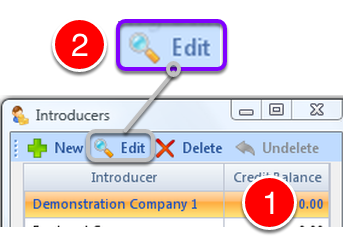
1: Select an Introducer to Edit.
2: Click Edit from the Menu – the Edit Introducer window will open.
Add a Sub Introducer
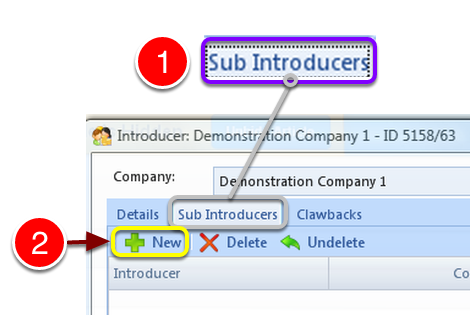
1: Click the Sub Introducers tab – the Sub Introducers window will open.
2: Click New – the Introducers select window will open.
Select an Introducer.
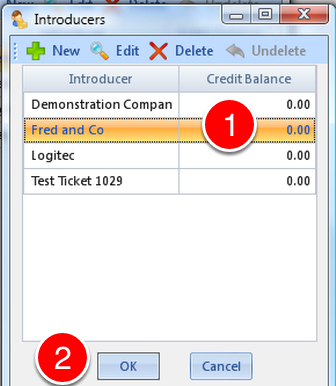
1: Select an Introducer.
2: Click OK to Add this Introducer as a Sub Introducer – the window will close and the Introducer will be added to the Sub Introducer list.
Close the window
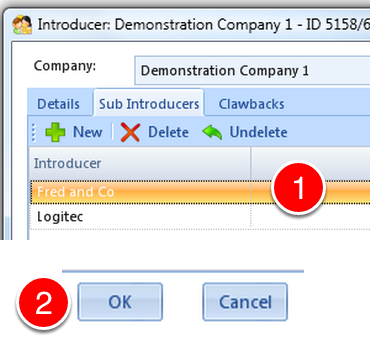
1: The Sub Introducer is added to the list, to add another repeat the steps by clicking New from the menu.
or
2: Click OK to close the window.
Delete a Sub Introducer
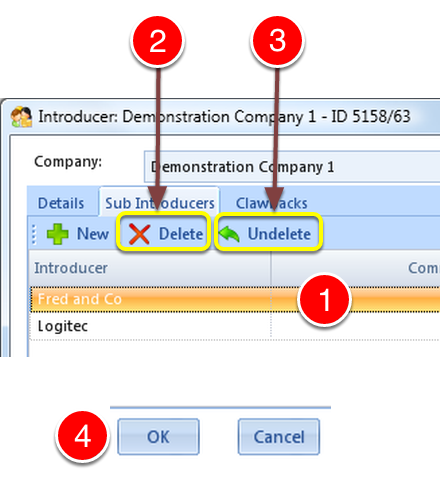
1: Select the Sub Introducer to delete.
2: Click Delete to delete the Sub Introducer.
3: If the Sub Introducer was deleted in error – Click Undelete to abort the deletion.
4: Click OK to close the window.