Creating a Payment Schedule
Open the Search window
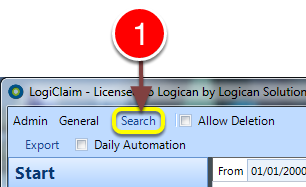
1: Click Search from the Menu – the Search window will open.
Open a Client
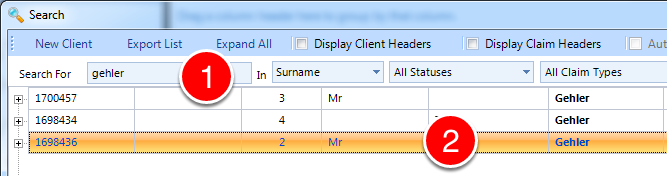
1: Enter search criteria, if required.
2: Double click the required client – the Client window will open.
Enter the Offer and Billing information
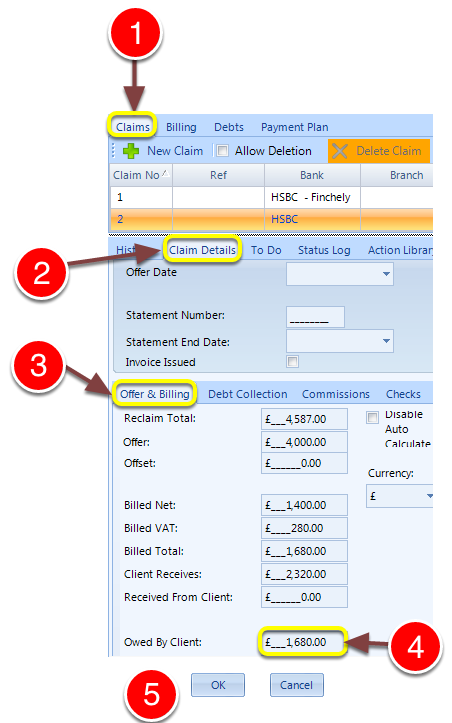
1: Click the Claims tab – the Claim window will open.
2: Click Claim Details – the claim Details window will open.
3: Click the Offer and Billing tab – the Offer and Billing tab will open.
4: Fill in the amount owed by the Client.
5: Click OK to Save and close the Client window – re-open the Client window as in step 1 and 2.
Open the Payment Schedule Details window
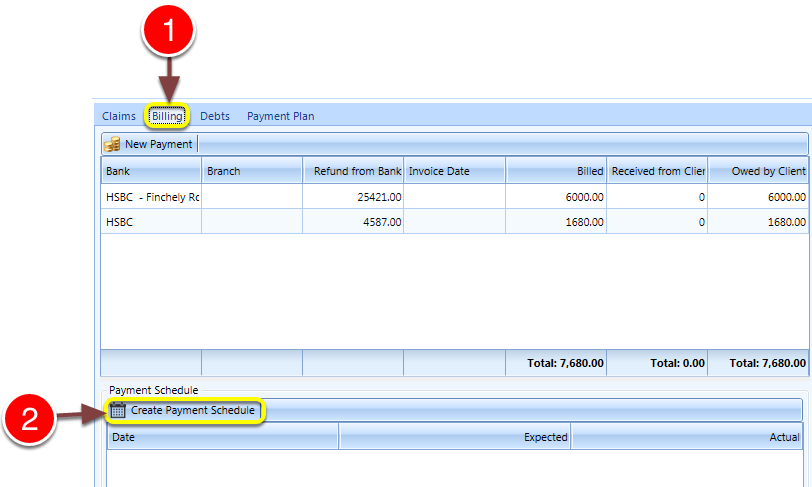
1: Click the Billing tab – the Billing window will open.
2: Click Create Payment Schedule – the Payment Schedule Details window will open.
Create a payment schedule
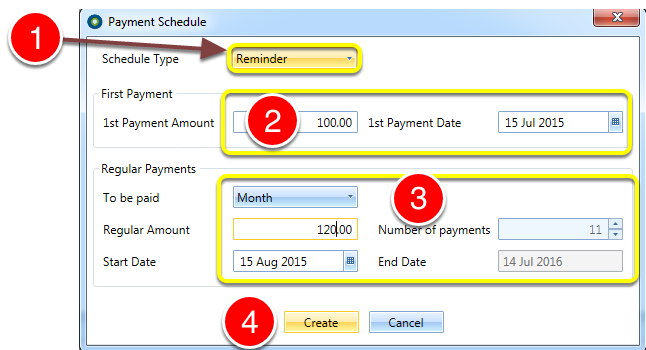
1: Select ‘Reminder’ as the Schedule Type.
2: Enter the initial payment amount and reminder date.
3: Enter the regular reminder amounts, frequency and commencement date.
4: Click Create to create the Payment reminder schedule – the Payment Schedule Details window will close.
Save and close
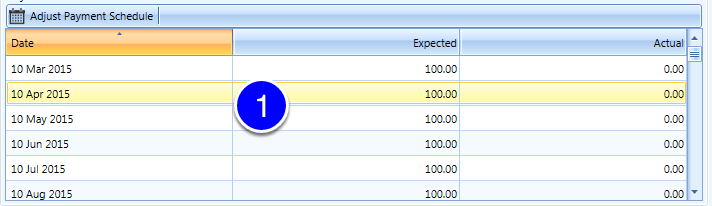
1: The Schedule is shown in the Billing tab, missed payments are shown red and outstanding payments are black.
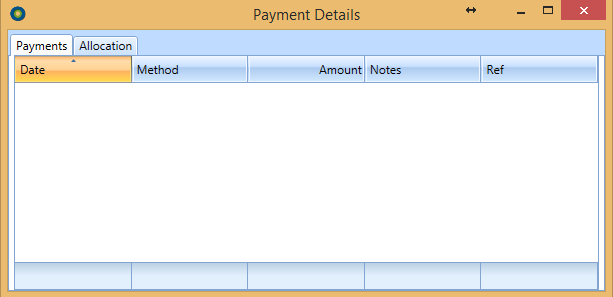
Payment Details
To see the details of a payment, double click the payment. The Payment Details window displays with all of the details.