How to Export all Correspondence in a Client’s History
Authorise the User to See the Export Button
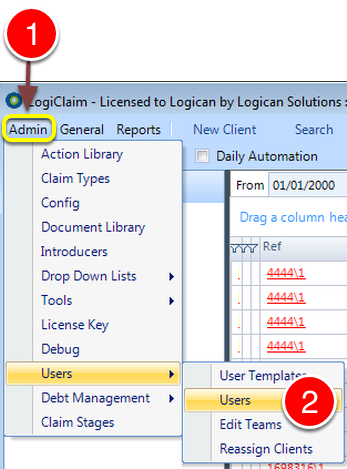
- Click Admin from the menu.
- Select Users > Users from the drop down list – the Users window will open.
Select the Required User
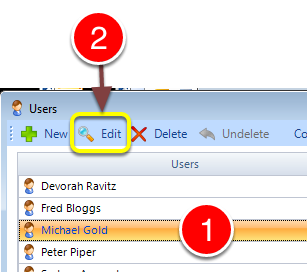
- Select the required User.
- Click Edit – the User window will open.
Set the Permission
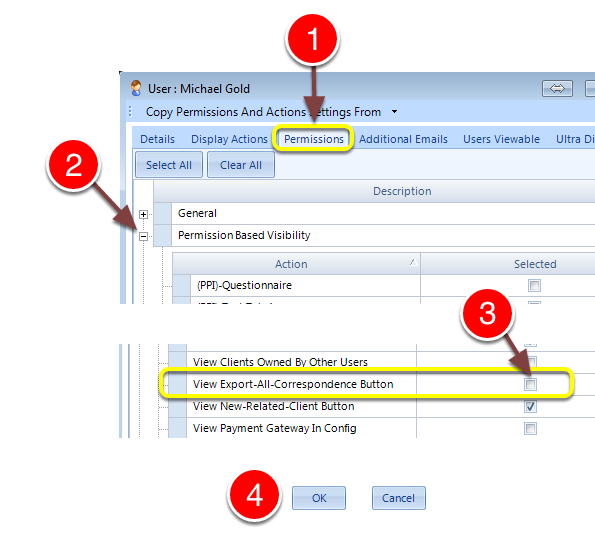
- Select the Permission tab – the Permissions tab will open.
- Expand the Permission Based Visibility section – the section will open.
- Tick View Export-All-Corresponence button.
- Click OK to save the changes and close the window.
Perform the Export
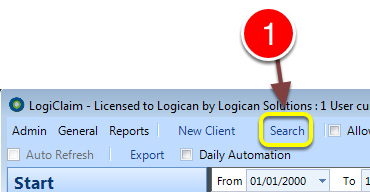
- Click Search – the Search window will open.
Select the Client
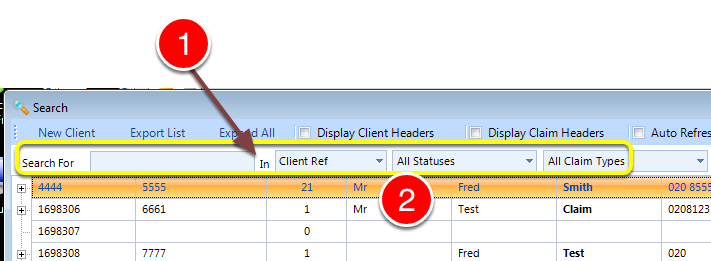
- If required, enter some search criteria or press Enter for all.
- Double click the required client – the Claim window will open.
Click the Export Button
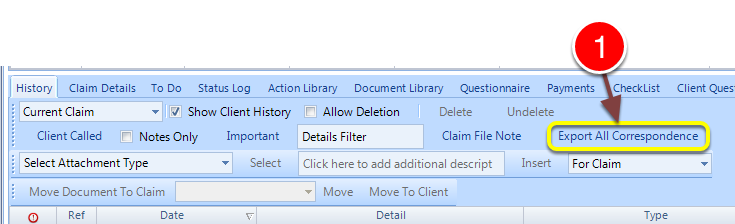
- Click the Export All Correspondence button – the Browse For Folder window will open.
Select the Folder to Export the Data to
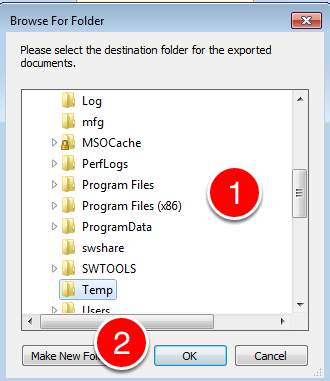
- Navigate to the required folder.
- Click OK – the export will begin.
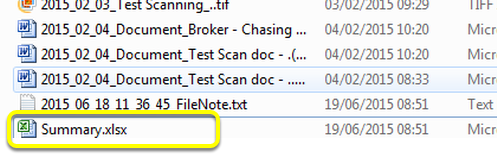
Data is Exported with a Summary File
Introduced in Version Number 2015.6.25.1669 on 25/06/2015