How to attach an item from one claim to another claim’s email
Open the Search screen
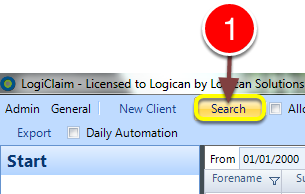
1: Click Search from the menu – the Search window will open.
Open the required client
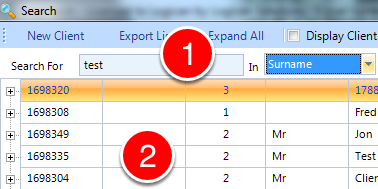
1: If required enter some search criteria or press ‘Enter’ for all.
2: Double click on the required client – the Client window will open.
Open the client’s Email window
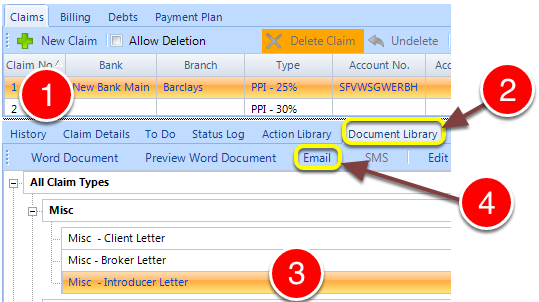
1: Notice that the client has multiple claims.
2: Click the Document library tab – the Document Library will open.
3: Select the required template for email.
4: Click the Email button – the Email window will open.
Open the insert menu
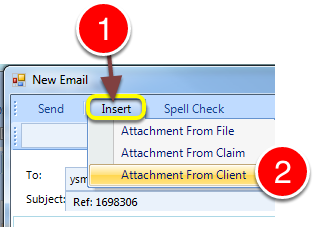
1: Click the Insert button from the menu.
2: Select Attachment From Client – the Client History window will open, displaying all the client’s documents and attachments.
Attach an item from a different claim
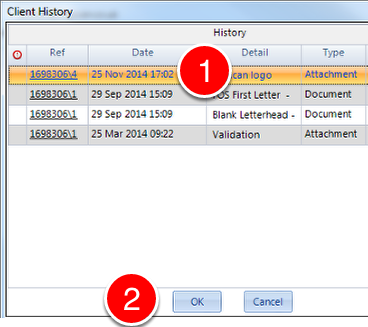
1: Select the required document/attachment.
2: Click OK and continue setting up the email to your requirements.