How to Create a Sticky Note in History
Enable the Sticky Note
Open the Config
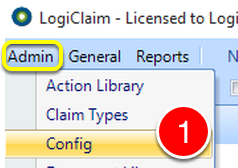
- Click Admin | Config – the Config window will open.
Enable the Permission
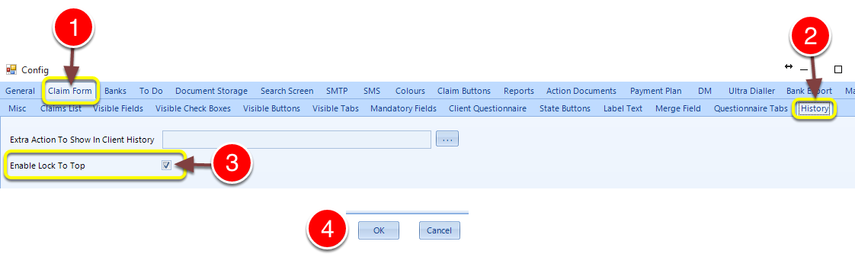
- Click the Claim Form tab the Claim Form tab will open.
- Click the History tab – the History tab will open.
- Tick the Enable Lock to Top checkbox.
- Click OK to save the change and close the window.
Use the Sticky Note
Open a Client
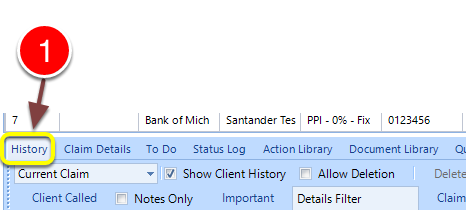
- Open a Client and click the History tab – the History tab will open.
Note the new button – Lock To Top

Note the new button (Copy)
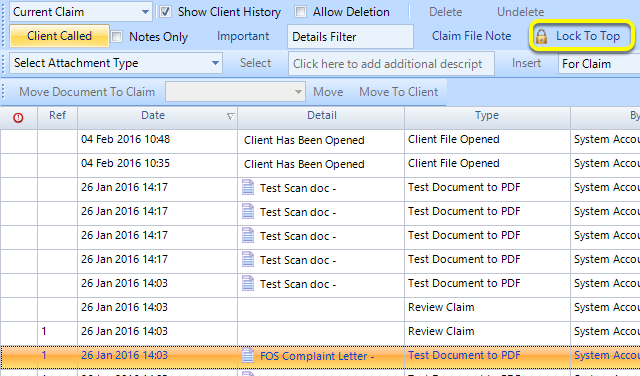
- Click the History entry that is required to be locked.
- Click Lock to Top – The item will move to the top.
Unlock an entry
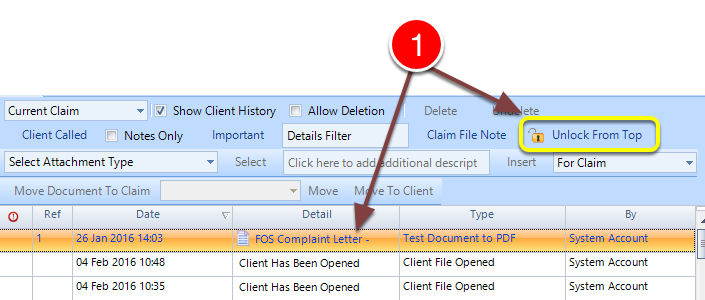
- The entry will now stay at the top until Unlock From Top is clicked.
Introduced in version 2016.2.1.2369