How to set the copy to JP2 from historical attatchments to save in per Bank …
Info
When an action is set to copy and save historical attachments to JP2 format, the file is stored in a root directory. In order to have a separate folder for each bank follow the steps below.
Open the Config
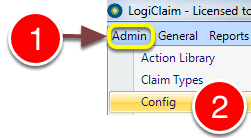
1: Click Admin from the menu.
2: Select Config from the drop-down menu – the Config window will open.
Add individual Bank folders
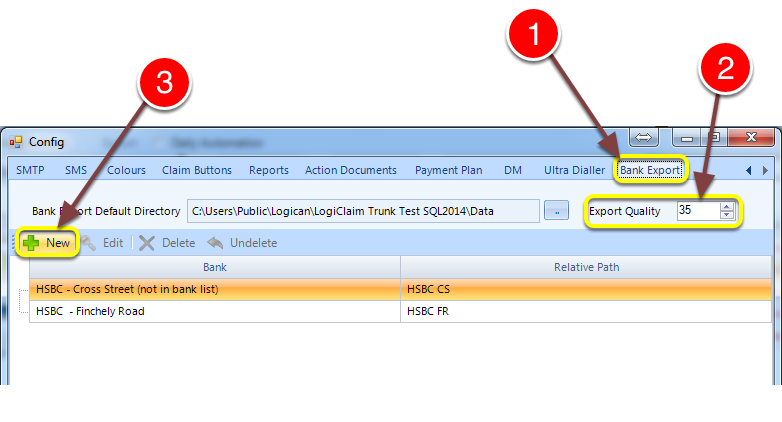
1: Click on the Bank Export tab.
2: Set the quality percentage of the exported JP2 file.
3: Click New – the Bank Export Directory Details window will pop out.
Select bank and folder name
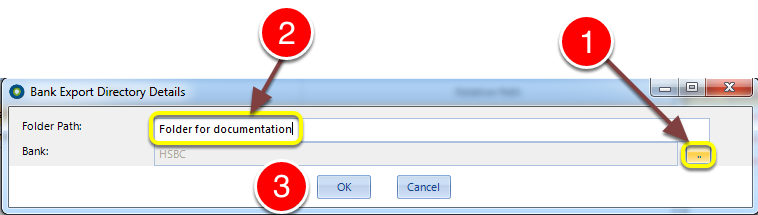
1: Click on the … button and select a bank from the Banks List.
2: Enter the required folder name.
3: Click OK to save and close the window.