Skip to content
  • LogiClaim
  • LogiPro
  • LogiPay
  1. LogiClaim
  2. LogiClaim - Full User Manual
  3. Scanning
  4. How to ignore blank pages when scanning in duplex mode
LogiClaim - Full User Manual
  • Getting Started
  • Creating Documents
  • Action Library
  • Search
  • Claims
  • Claim Stages
  • Client Statuses
  • Admin - Claim Types
  • Admin - Config
  • Admin - Drop Down Lists
  • Admin - Introducer
  • Admin - Report Builder
  • Admin - Tools
  • Admin - Users
  • Scanning
    • How to Scan a Document
    • How to Attach a Scanned Document to a Claim
    • How to Scan a Signature
    • How to create a divider page so that scans are seperated
    • How to ignore blank pages when scanning in duplex mode
    • How to Print a Barcode on a letter and automatically attach it back to the Claim when Scanning
    • Scan by ClientClaim ID
    • Friendly Naming of Documents
    • Using Signatures in a Document
  • General
  • Printing
  • Payments
  • Create Questionnaires
  • Ultra-Dialler
  • Misc
  • To Do List
  • Portal
  • Where is the Data Found?
  • GDPR

How to ignore blank pages when scanning in duplex mode

Open the Scanner
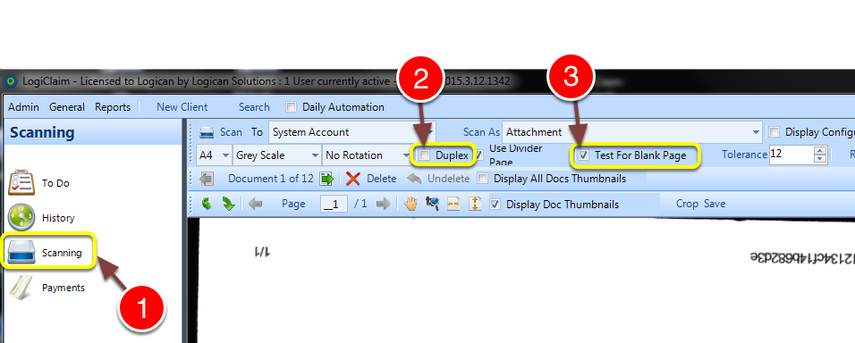
Open the Scanner

1: Click Scanning – the Scan window will open.

2: To scan in duplex mode, click the “Duplex” tick box.

3: To ignore blank pages, click the “Test For Blank Pages” tick box.

Introduced in version 2015.3.12.1342

© 2026 Logican Solutions

support@logican.co.uk ยท logican.co.uk