Ultra-Dialler Setup
Setting up the Users
Open the Users Window
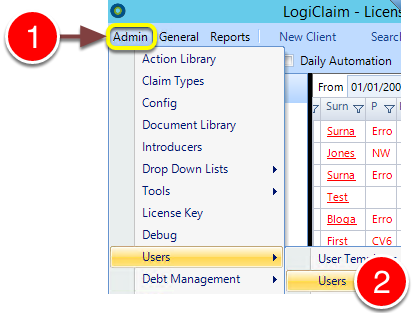
1: Click Admin in the menu.
2: Select Users > Users from the drop down menu – the Users window will open.
Open the Required User Window
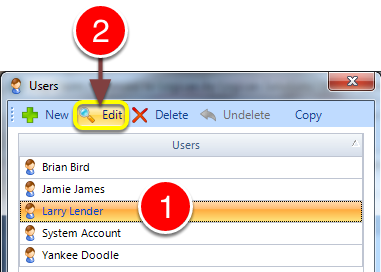
1: Select the required User from the list.
2: Click Edit – the User window will open.
Change the Setting
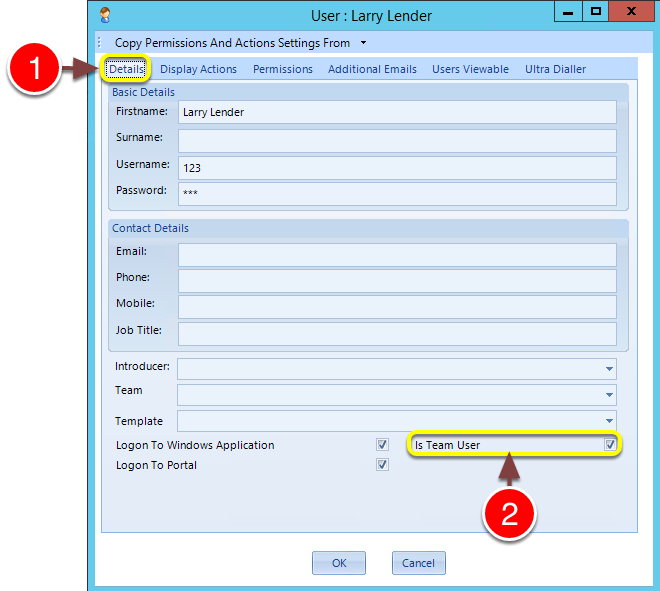
1: Click on the Details tab.
2: If the User is also responsible for call-backs, tick the Is Team User checkbox.
Set User’s Call-Back Options
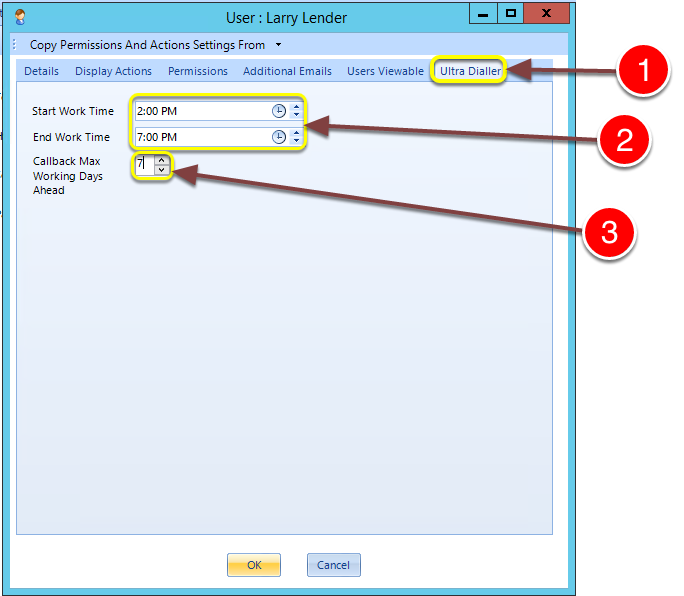
1: Click on the Ultra Dialler tab.
2: Set this User’s Start Work Time and End Work Time – call-back actions will not be scheduled outside these times.
3: Set the maximum days ahead that a call-back can be scheduled for this user.
Setting the Config
Open the Config
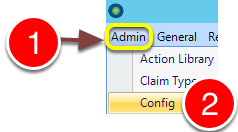
1: Click Admin in the menu.
2: Select Config from the drop down menu – the Config window will open.
Change the Settings
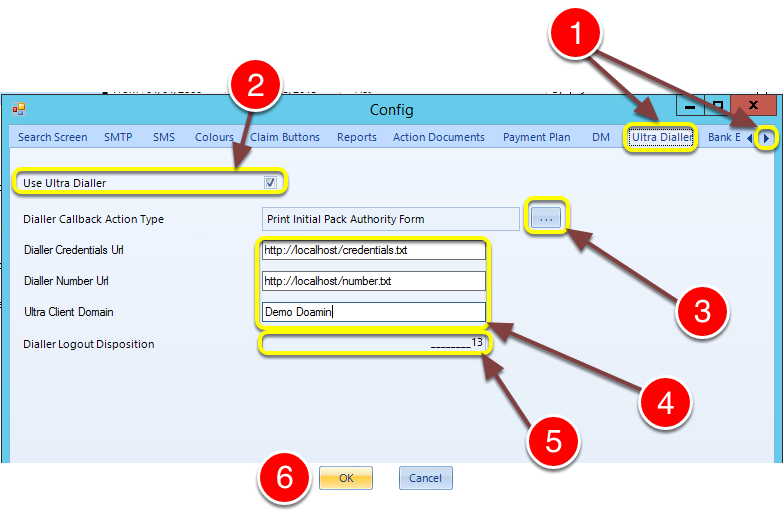
1: Scroll to the right and click on the Ultra Dialler tab.
2: Tick the Use Ultra Dialler checkbox.
3: Click the … button to select the action that will be scheduled for call-backs.
4: Enter the Dialer Credentials URL, Dialer Number URL (outbound number) and Ultra Claim Domain.
5: Enter the Dialler Logout Disposition – this may have to be obtained from Logican Support.
6: Click OK to save the settings and close the window.