How to add Inventory to a Unit
Open the Unit
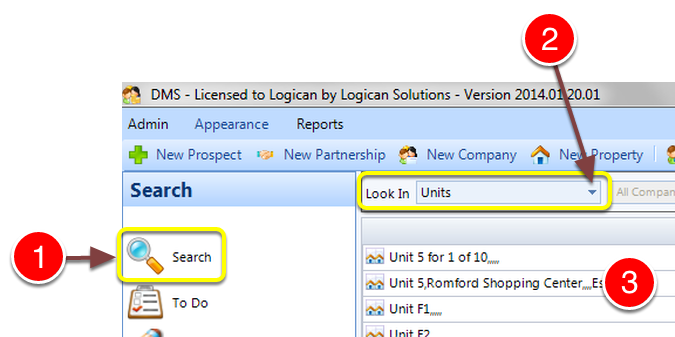
1: Click Search from the Side Menu.
2: Select Units from the drop down list – a list of Units will display.
3: Double click a Unit to open it – the Edit Unit window will open.
Open the Contents window
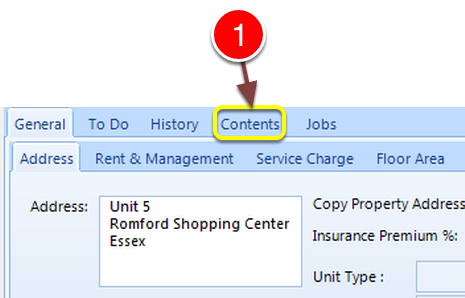
1: Click the Contents tab – the Contents window will open.
Add an item
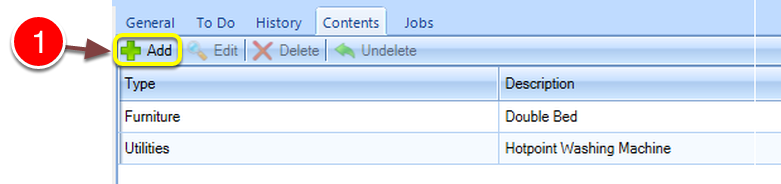
1: Click Add – the New Content window will open.
Fill in the details
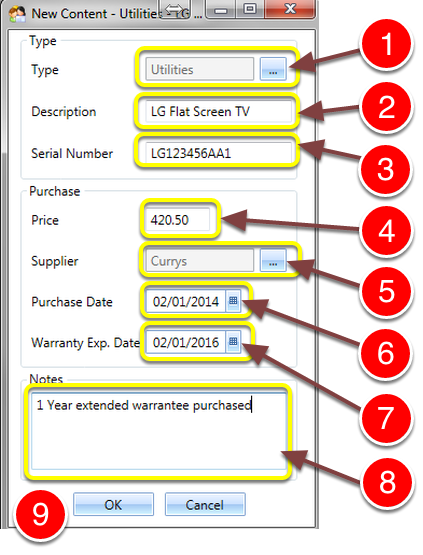
1: Select a type from the pop-out list. Click here for instruction on how to edit the list.
2: Key in a Description.
3: Key in a Serial Number.
4: Key in the Purchase Price.
5: Select the Supplier from the pop-out list.
6: Select the Purchase Date from the pop-out calendar.
7: Select the Warranty Expiry Date from the pop-out calendar.
8: If required enter some notes.
9: Click OK to Save the data and close the window.