How to add a Client’s Assets
Info
When creating a new client, the User will be directed to this function automatically if the Debt Guidance feature is enabled.
Open Search window
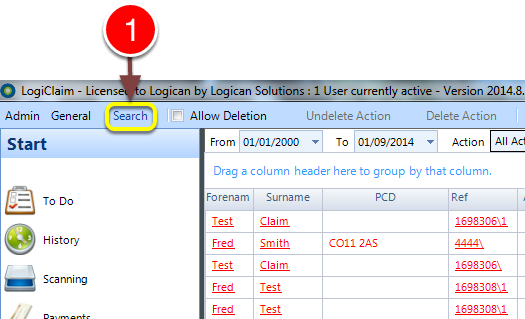
1: Click Search – the search window will open.
Select a client
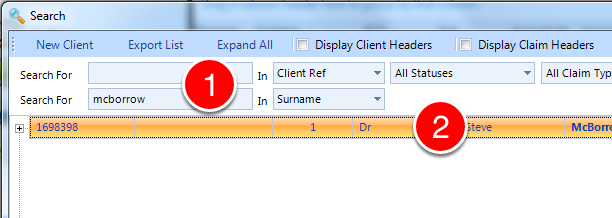
1: If required enter some search criteria or press enter for all.
2: Double click the desired client to open.
Open the Assets Types window
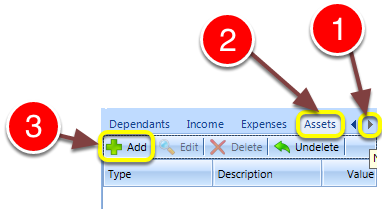
1 – Click on the arrow to scroll until the Assets tab is visible
2 – Click the Assets tab in the Client window – the Assets window will open.
3 – Click Add – the Add Asset window will open.
Adding Assets
There are 3 asset types; Simple, Property, Vehicle
Adding a Simple Asset
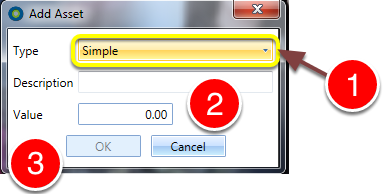
1 – Select Simple from the drop-down list.
2 – Add a description and a Value for the Asset.
3 – Click OK to close the window.
Adding a Property
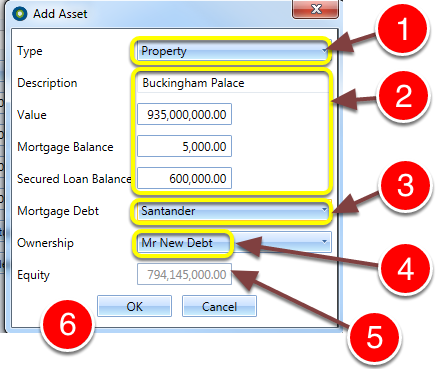
1: Select Property from the drop-down list.
2: Enter the property details.
3: Select the creditor associated with this Mortgage. (A debt must exist for the amount borrowed against this property.)
4: Choose the which of the Client persons own the property (used when there a 2nd person was added)
5: The equity is a calculated field. 85% of property allowed loan value (this rate will be adjustable in future releases) – secured loan balance – mortgage balance. The amount is halved when the property has joint ownership.
6: Click OK to save the property and close the window.
Adding a Vehicle
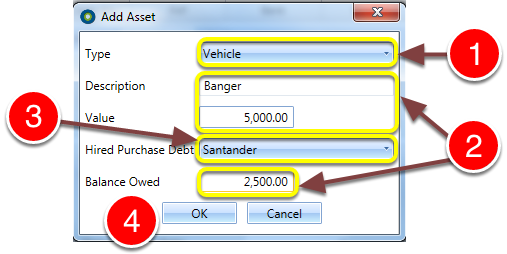
1: Select Vehicle from the drop-down list.
2: Fill in the details.
3: Select the creditor associated with this Hired Purchase Debt. (A debt must exist for the amount borrowed for the purchase of this vehicle)
4: Click OK to save and close the window.