How to block Users from using a Custom Report
Info
This article describes how to block all or some users from running a report created in the Report Builder.
NOTE: In order for the user to be blocked effectively, you must first remove the Report Builder from their permission. Click here for instruction.
How to stop all users running a custom report
Open the Report Builder
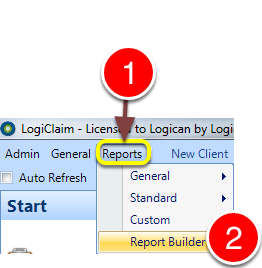
1: Click Reports from the menu.
2: Click Report Builder from the drop-down list – the Report Builder will open.
Select the Report to edit
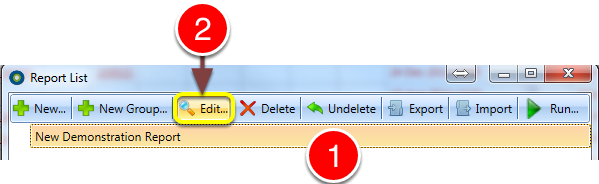
1: Click on the required report.
2: Click edit – the Report Details window will open.
Toggle the report’s visibility
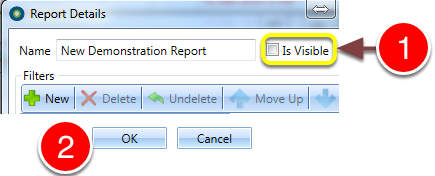
1: Untick the Is Visible check-box.
2: Click OK to save and close the window.
NOTE: The program will have to be restarted before the changes take effect.
How to block some users running a custom report
Open the Report Builder
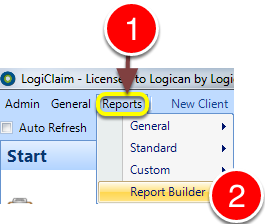
1: Click Reports from the menu.
2: Click Report Builder from the drop-down list – the Report Builder will open.
Select the Report to edit
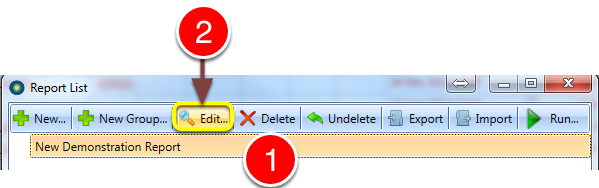
1: Click on the required report.
2: Click edit – the Report Details window will open.
Toggle the report’s visibility
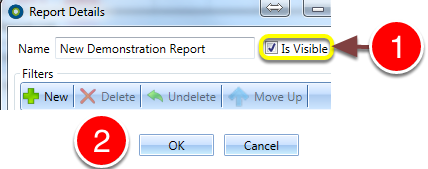
1: Tick the Is Visible check-box.
2: Click OK to save and close the window.
NOTE: The program will have to be restarted before the changes take effect.
Open the User window
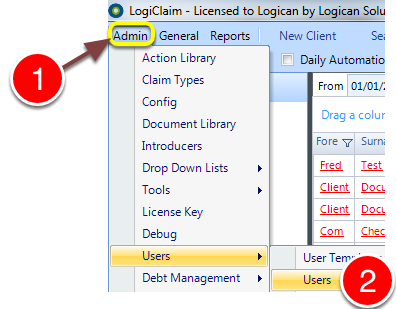
1: Click Admin from the Menu.
2: Select Users–> Users from the drop-down menu – the Users window will open.
Select the required User
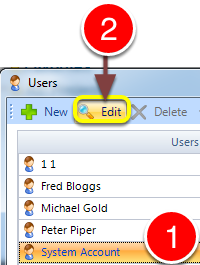
1: Select the required User.
2: Click Edit – the Users’ window will open.
Change the permission
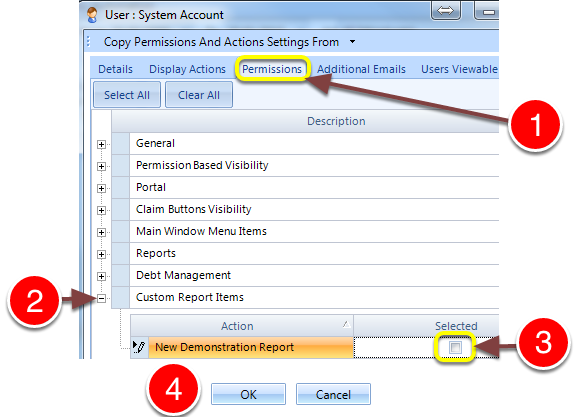
1: Click the Permissions tab – the Permissions window will open.
2: Expand the Custom Report Items section.
3: Untick the report’s permission check-box.
4: Click OK to save and close the window.
NOTE: The program will have to be restarted before the changes take effect.