How to Add or a Delete Action
Open the Action Library
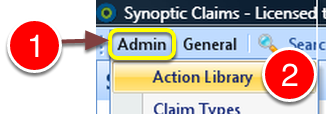
1: Select Admin from the menu.
2: Select Action Library from the drop down list – the Action Library window will open..
Select the Action
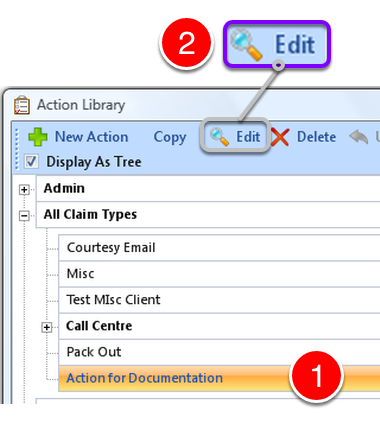
1: Select the action to change.
2: Click Edit from the menu – The Edit Action window will open.
Add a Delete Action
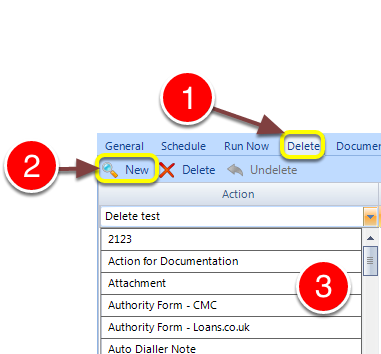
1: Click the Delete tab – the Delete Action window will open.
2: Click New from the menu – a new entry will be created.
3: Choose the action you wish to delete from the To Do list from the drop down list.
Decide if this Should Affect all Client Claims
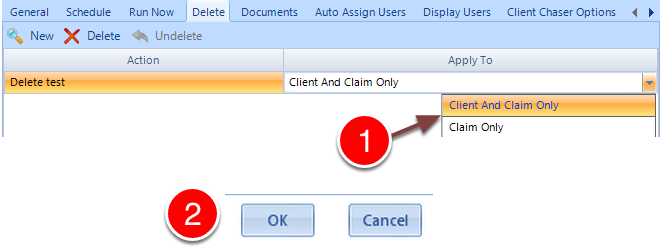
1: Select from the drop down list whether the delete should affect all client claims.
2: Click OK to save the changes and close the window.
Delete an Action
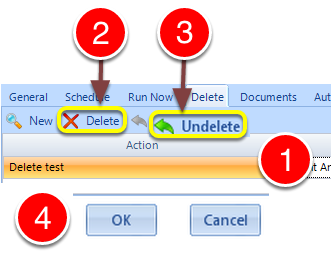
1: Click the action to be deleted.
2: Click the Delete button to delete the action.
3: If deleted in error, click the Undelete button to undo the deletion.
4: Click OK to close the window.