How to Use the Client Chaser Options – Using Cold Call Actions
Info
Client Chaser must be set up first. Click here for instruction.
Open a Client
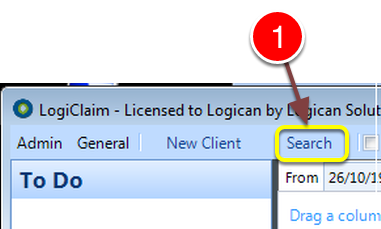
1: Click the Search button – the Search window will open.
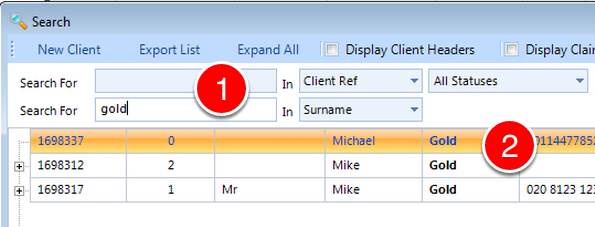
1: If required, enter some search criteria or press enter for ALL.
2: Double click on the required client to open.
Run the Action
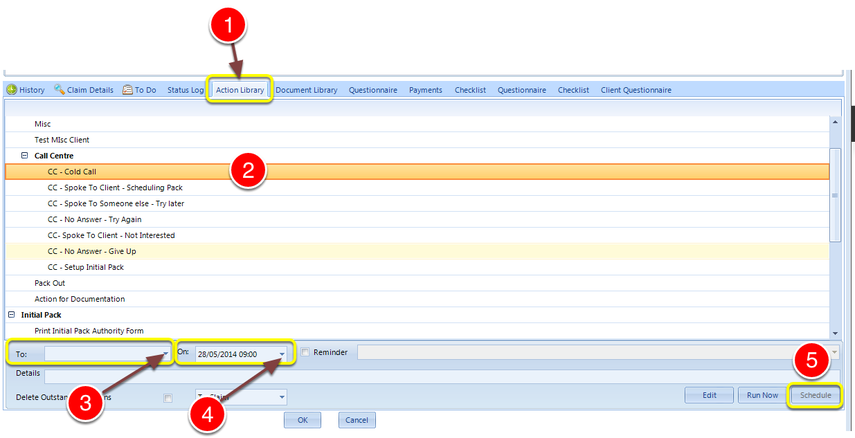
1: Click the Action Library tab – the Action library will open.
2: Select the Cold Call Action.
3: Select which user this should be scheduled To, from the drop down list.
4: Select when this should run.
5: Click Schedule – the action will be scheduled to the To Do list.
The To Do List
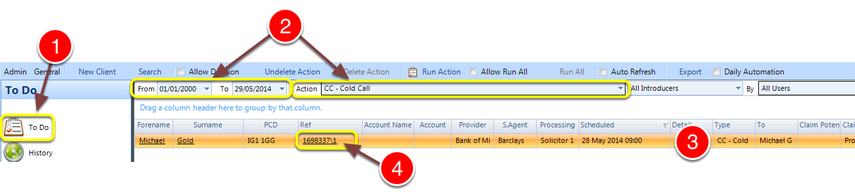
1: Click the To Do button on the side menu – the To Do List will open.
2: Select a date range and the action CC – Cold Call – the action or actions will be displayed.
3: Click on the action you wish to run.
4: Double click on the Ref – The action will run and the results window will open.
Fill in the Results
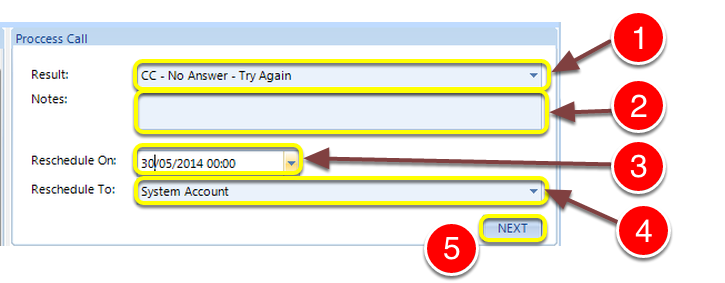
1: Select a Result from the drop down list.
2: If required, enter Notes.
3: If required select a Reschedule On date.
4: If required choose who to Reschedule To.
5: Click NEXT – If there are more cold calls to make, they will appear in turn and change each time NEXT is clicked.
The Call Has Been Rescheduled as Requested
