How to create/change Mis-Selling Checks for a claim type
What is this?
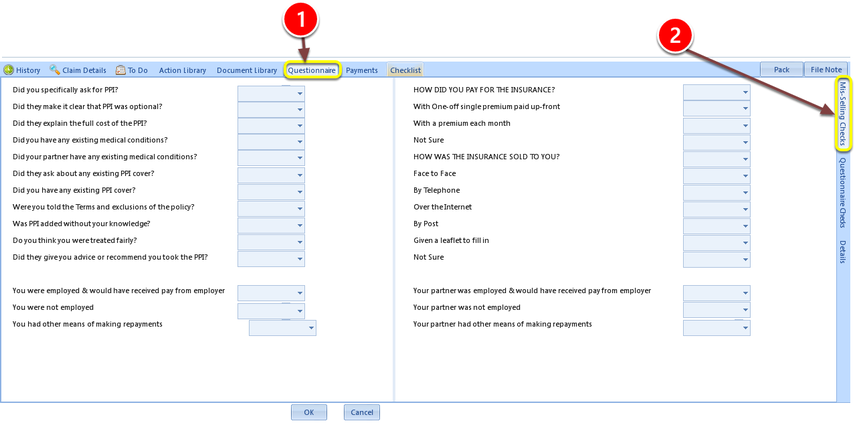
The miss-selling check list is attached to a claim, dependent on a claim type, and actioned by:
1: Clicking Questionnaire in a client’s claim form.
2: Mis-Selling Checks
Adding to or Changing the Mis-Selling Checklist.
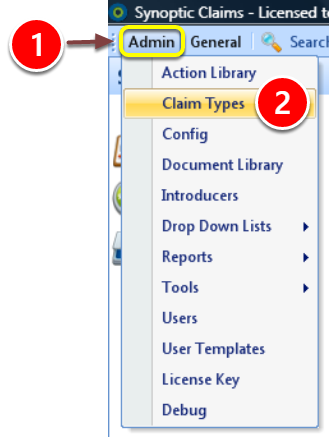
1: Click Admin on the Menu.
2: Click Claim Types on the drop down menu – the Claim Types window will open.
Select Claim Type
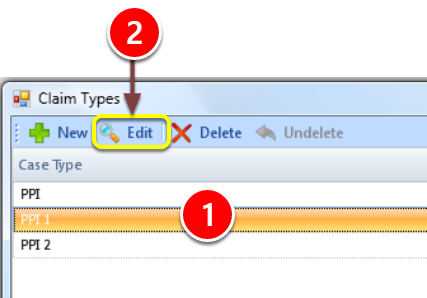
1: Select the Claim Type that requires change.
2: Click Edit – The Claim Types Edit window will open.
Open Claim Type Edit Window
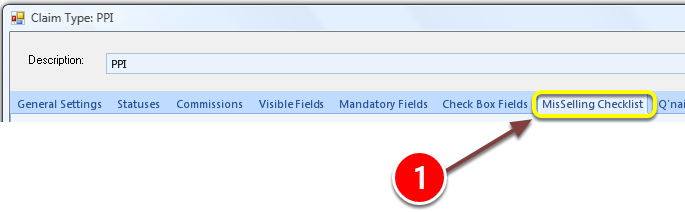
1: Click Mis-Selling Checklist on the menu – The Mis-Selling Checklist will open.
Type the Questions
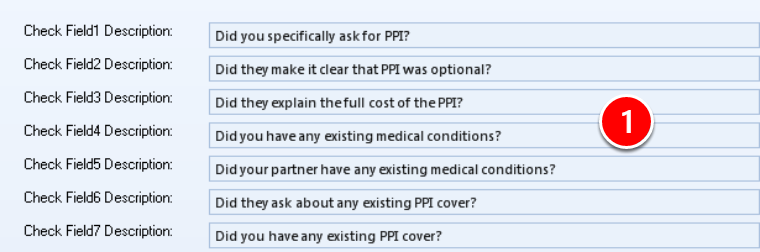
1: Type your Questions in the order that you would like them. They should have Yes/No answers.
There are 30 available fields.
How to Leave a Line

If a gap in the questionnaire is required, leave a field blank.
Confirm Changes

1: Click OK to SAVE changes.
Or
2: Click CANCEL to ABORT changes.