How to move an attachment from one claim to another
Open the Search window
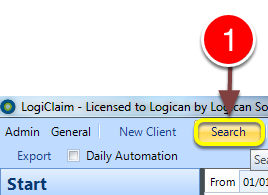
1: Click Search from the Menu – the Search window will open.
Open the required Client
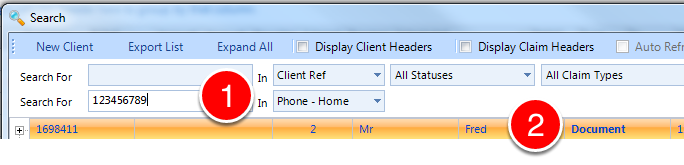
1: If required enter search criteria.
2: Click on the required client – the Client’s window will open.
Open the attachment required
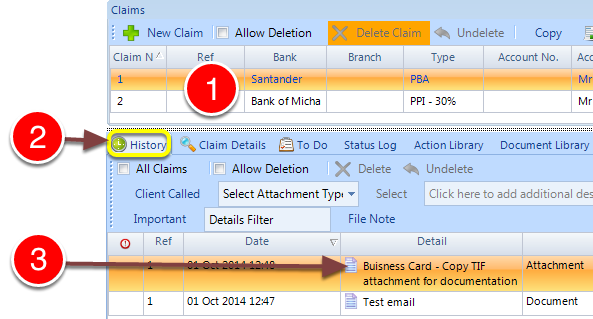
1: Click on the Claim,with which the Attachment is currently associated with.
2: Click the History tab – the History of the Claim will open.
3: Double click the Attachment – the Scanned Item Details window will open.
Move the attachment to a different claim.
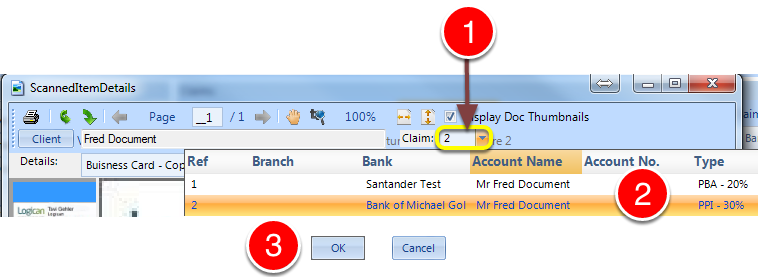
1: Click on the drop-down menu.
2: Select which claim you require the attachment to be moved to.
3: Click OK – the scanned Item Detail window will close.
Save your changes

1: Click OK to save and close the Client window.