How to Add, Change or Delete Primary Sources to/from the drop down list
Open the Primary Sources window
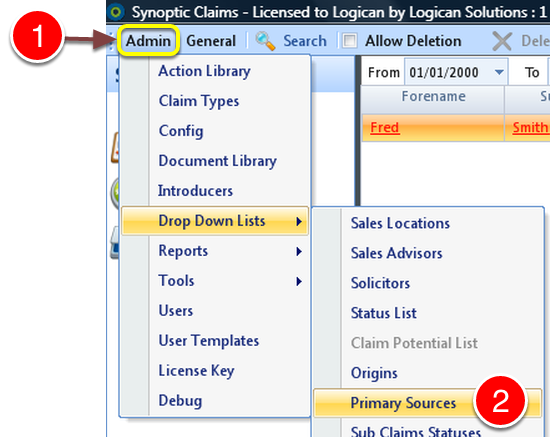
1: Click Admin on the Menu.
2: Click Primary Sources from the drop down list – the Primary Sources window will open.
Add a Primary Source
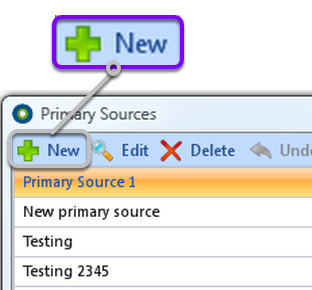
1: Click New – the New Primary Source window will open.
Give the Source a Name
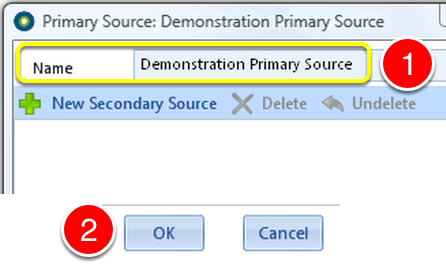
1: Type the Primary Source description. If required, see How to add a new secondary source
2: Click OK to close the window and save the changes.
Change a Primary Source Description
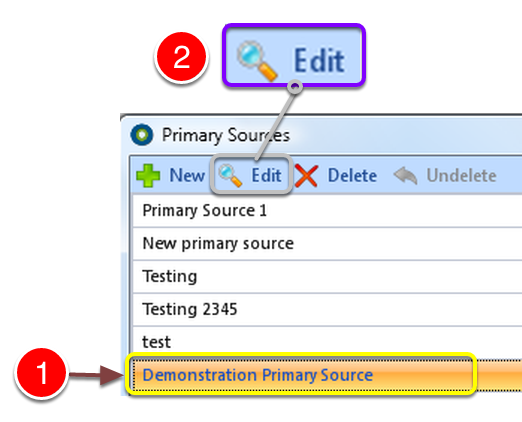
1: Select the Primary Source to Edit.
2: Click Edit.
Edit the Primary Source description
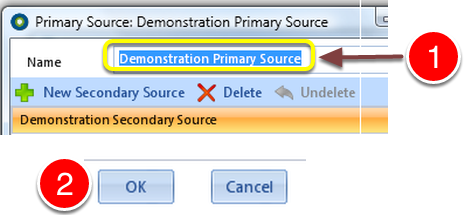
1: Type a new Primary Source description. If a Secondary Source description needs to be changed click here to see how.
2: Click OK to save the changes and close the window.
Delete a Primary Source
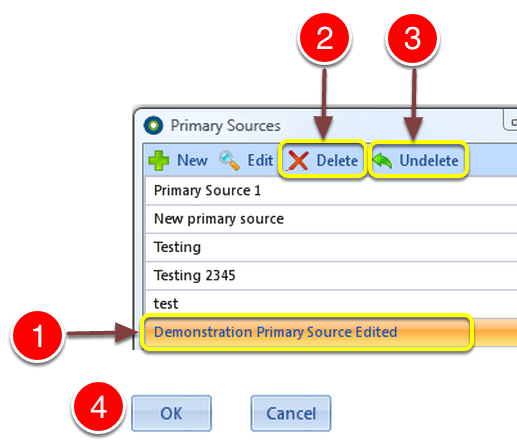
1: Select the Primary Source to be deleted.
2: Click Delete – the Primary Source (and any attached Secondary Sources) will be DELETED.
3: If deleted in error – click Undelete to ABORT the action – All attached Secondary Sources will Undelete too. – To delete a Secondary Source only, click here to see how.
4: Click OK to close the window.