How to Add to, Change or Delete a status to/from the drop down list
Open the Status Drop Down List window
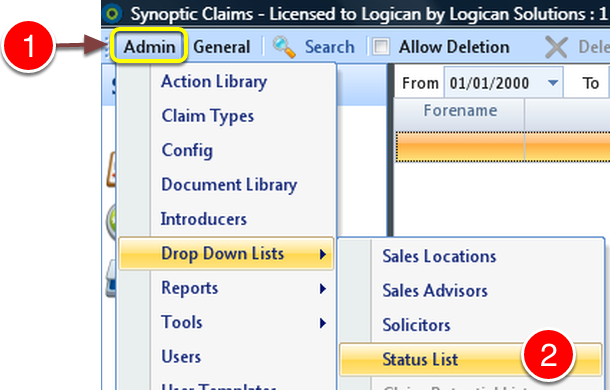
1: Click Admin on the menu.
2: Select Drop Down Lists —> Status List from the drop down menu – the Status List window will open.
Add a Status
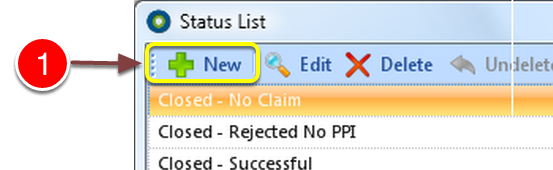
1: Click New from the menu – the New Status window will open.
Key in details and select actions
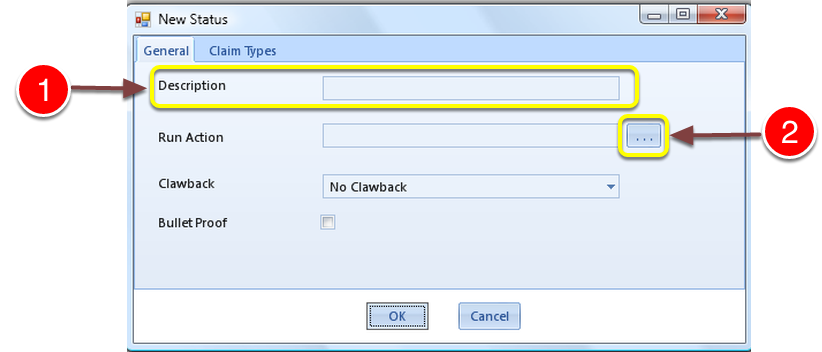
1: Add a Description by typing in the Description box.
2: IF required – Click … to add an Action to run.
Select an Action from the list
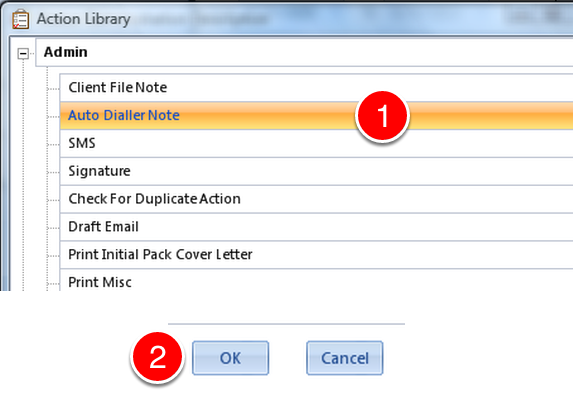
1: Select required Action from the list.
2: Click OK – the Window will Close.
Select claim type associated with this Status
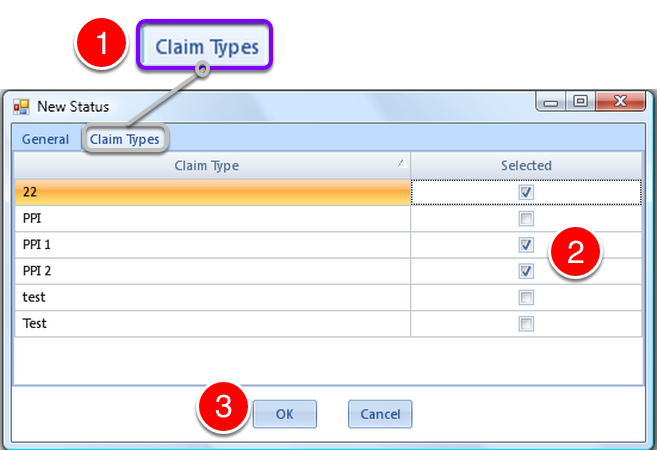
1: Click the Claim Types tab – the Claim Types window will open.
2: Tick the boxes to associate the Claim Type with the Status.
3: Click OK to close the window.
Change a Status
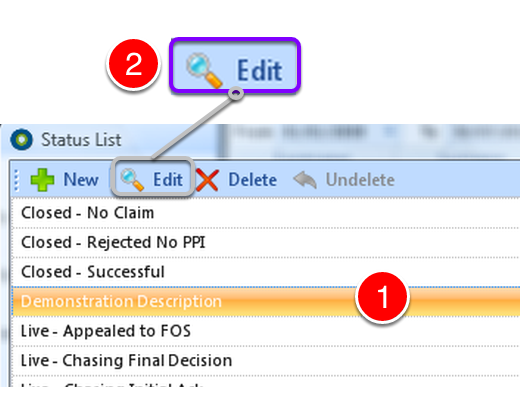
1: Select the Status that requires changing.
2: Click Edit – The Edit Status window will open.
Make the changes
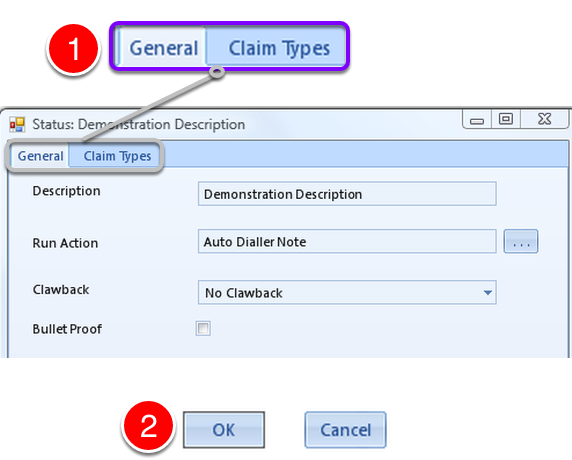
1: Change the required information in the General tab and the Claim Types tab
2: Click OK – the window will close.
Delete a Status
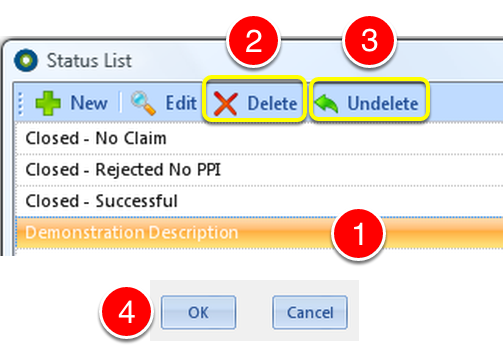
1: Select the Status to delete.
2: Click Delete – the item will be deleted.
3: If deleted in error – Click Undelete to reverse.
4: Click OK to close the window.