How to Add, Change or Delete an Origin to/from the drop down list
Open the Origins window
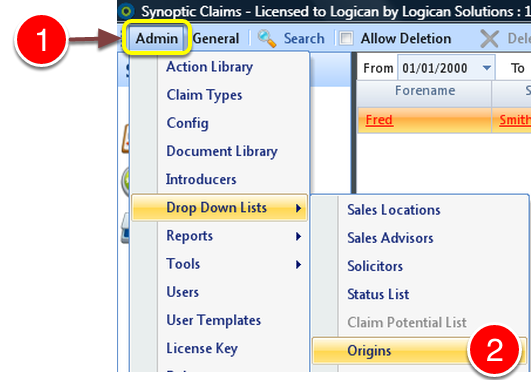
1: Click Admin on the menu.
2: Select Origins from the drop down list – the Origins window will open.
Add and Origin
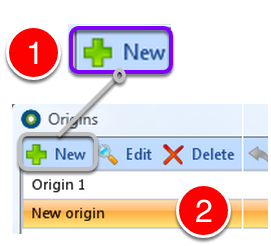
1: Select New from the Menu
2: A New Origin entry will be added.
Type Origin Name
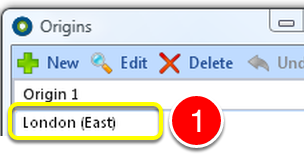
1: Click in the description box and type the required description.
Save Addition
1: Click OK to SAVE the addition.
Change an Origin
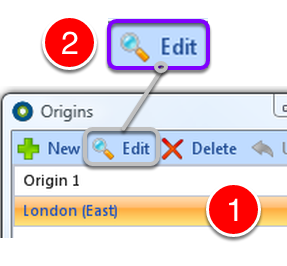
1: Select the Origin to Change.
2: Click Edit – The origin will change colour and allow editing.
Type new description
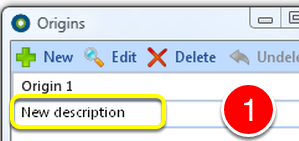
Type the new description in the description box.
Save Change

1: Click OK to SAVE change.
Delete an Origin
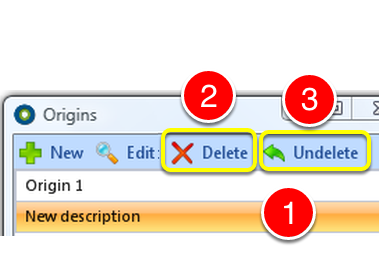
1: Select the Origin to Delete.
2: Click Delete to delete the Origin.
3: If deleted in error – Click the Undelete to reverse.
Close Window
1: Click OK to close the window.