How to Add, Change or Delete Client Profile Categories to/from the drop down list
Open the Client Profile Categories List
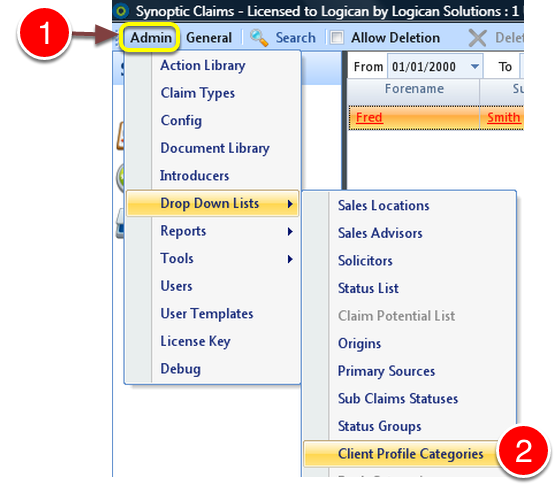
1: Click Admin on the Menu.
2: Select Client Profile Categories from the drop down list – the Client Profile Categories window will open.
Add a Client Profile Category
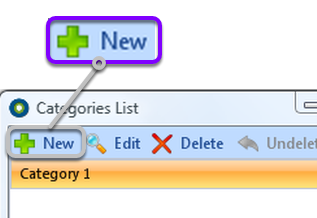
1: Click New from the Menu – the New Client Profile Category window will open.
Add Description and Values
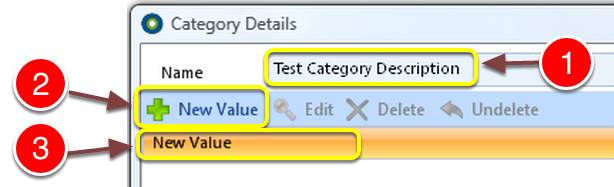
1: Type a description for the Category List.
2: Add Values by Clicking New Value – A New Value will be Created.
3: Edit the Value by clicking on the line and typing.
Add another value if required by repeating step 2.
Save the Information
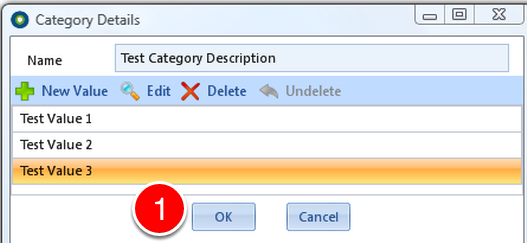
1: Click OK to save the changes and close the window.
Edit a Client Profile Category
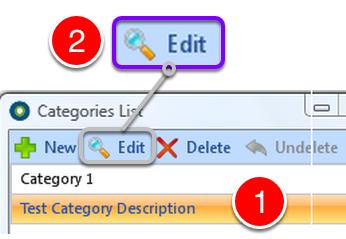
1: Select the Category to Edit.
2: Click Edit – the Category Details window will open.
Make the changes
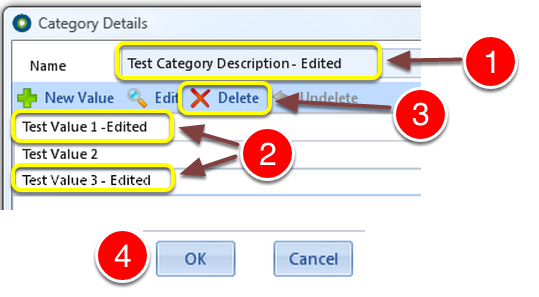
1: If required, edit the description by clicking on it and typing a name.
2: If required, edit the values by clicking on the values to change, and typing values.
3: To delete a value – Click on the Value and then Click Delete (If deleted in error, the Undelete button will restore it).
4: Click OK to save changes and close the window.
Delete a Client Profile Category
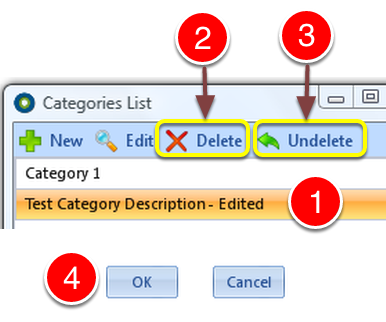
1: Click the Category to delete.
2: Click Delete – the Category and it’s values will be deleted.
3: If deleted in error – Click Undelete to ABORT the delete – the Category and it’s values will be restored.
4: Click OK to save the changes and close the window.