How to Add a Client's Expenses
Info
NOTE: When setting up a new debt client, the user can be guided to this pane automatically.
Open Search window
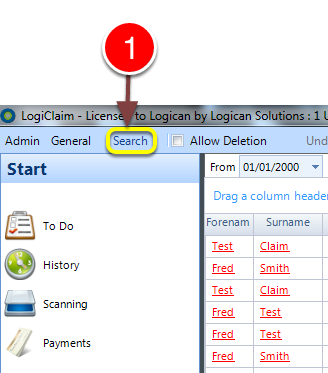
1: Click Search from the menu - the Search window will open.
Select a client
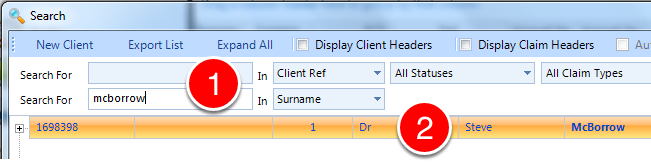
1: If required enter some search criteria or click enter for all records.
2: Double click the desired client - the client will open.
Open the Expenses tab
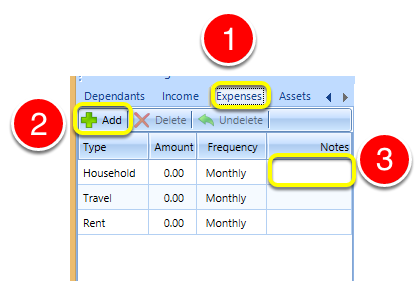
1: Click the Expenses tab - the Expenses window will open.
2: Click Add - the Add Expense Types window will open.
3: Click in the Notes field to add a note.
Add another instance of an expense
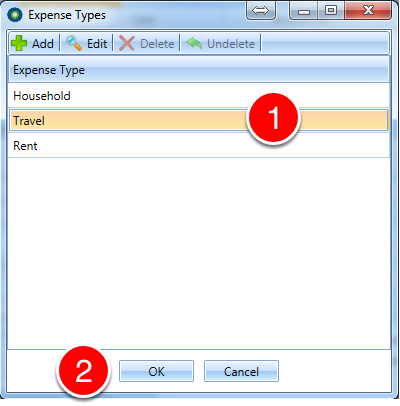
1: Click on the desired Expense Type.
2: Click OK to close the window.
Create a new Expense Type
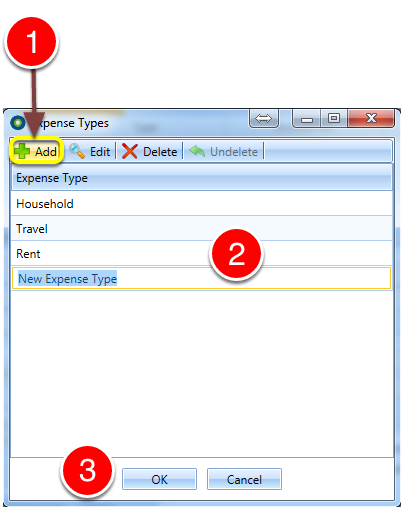
1: Click Add - a new entry will be created.
2: Enter a description for the Expense Type
3: Click OK to Save Expense Type and close the window.