How to Add, Edit or Delete Leaseholds to/from the Leaseholders list
Open the Leaseholders window
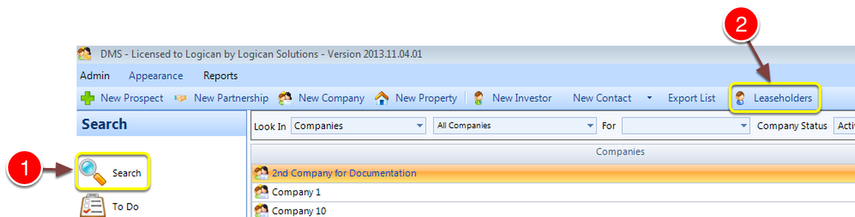
1: Click Search from the Side Menu.
2: Click Leaseholders – the Leaseholders window will open.
Add a New Leaseholder
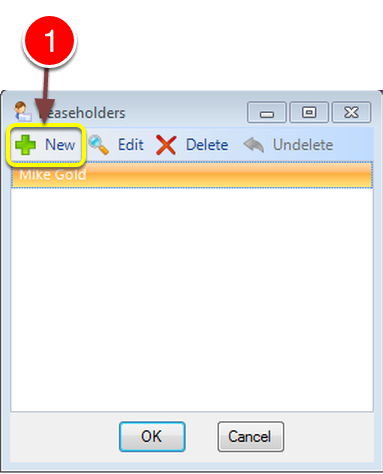
1: Click New – the New Leaseholders window will open.
Type details
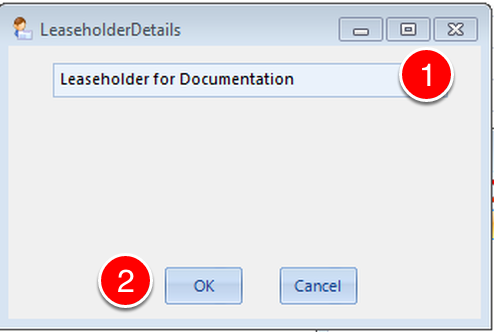
1: Type in the Leaseholders details.
2: Click OK to Save the data and close the window.
Edit a Leaseholder
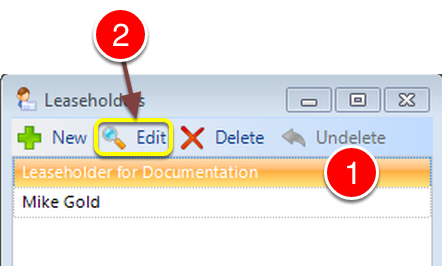
1: Click the Leaseholder to edit.
2: Click Edit – The Edit leaseholder window will open.
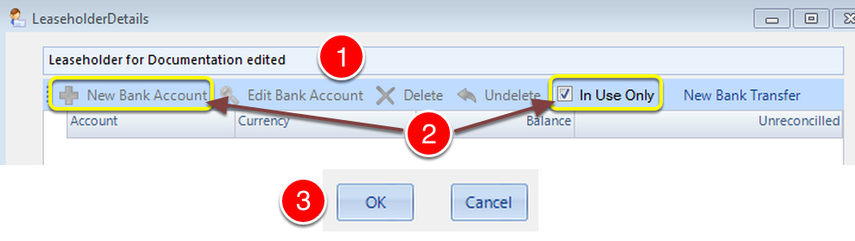
1: If required, change the Leaseholders details.
2: The list will be populated with the active bank accounts associated to the Leaseholder. To add a bank account, turn off the In Use Only check box which will active the button.
3: Click OK to Save the data and close the window.
Delete a Leaseholder
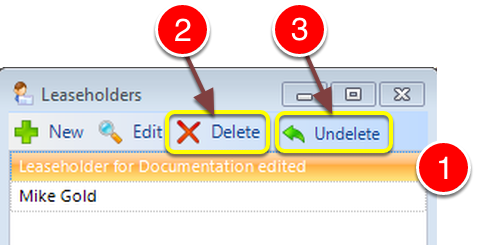
1: Click on the Leaseholder to be deleted.
2: Click Delete to delete the Leaseholder.
3: If deleted in error, click Undelete to Abort the deletion.