How to raise an invoice on behalf of another company
Open the Unit to Invoice
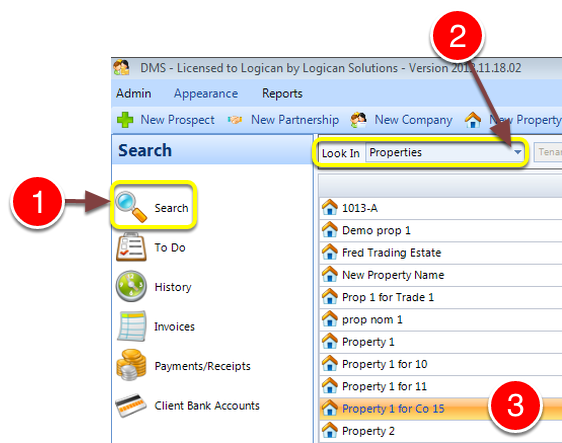
1: Click Search from the Side Menu.
2: Select Properties from the drop down list.
3: Double click the required property – the Edit Property window will open.
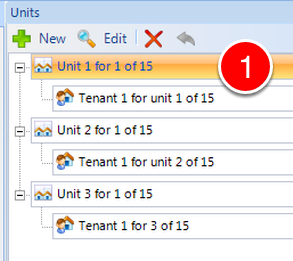
1: Double click the required Unit – the Edit Unit window will open.
Select the Invoice Generated by company
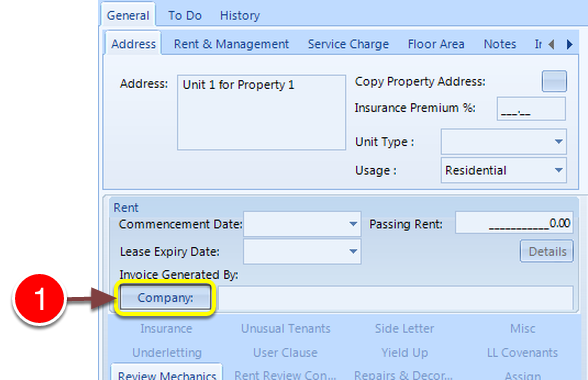
1: Click the Company button – the Select Company window will open.
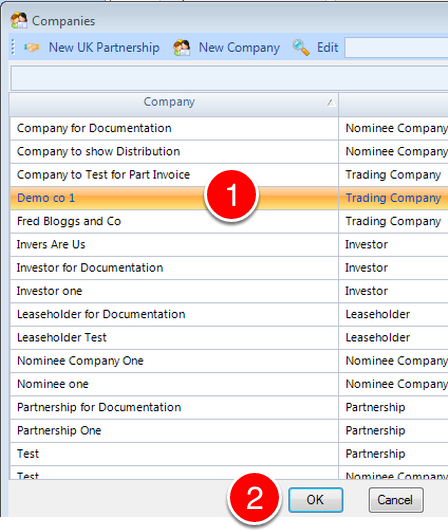
1: Select the required company.
2: Click OK – the window will close.
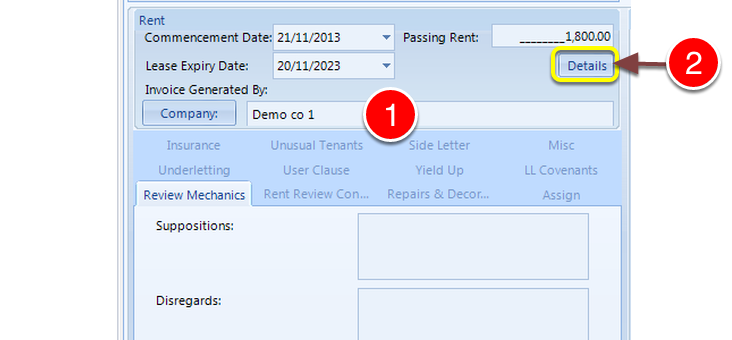
1: The company is added to the Unit Invoice Generated By field.
The Lease needs to be opened and saved in order to store the new Invoice Generated by details.
2: Click Details to open the lease.
Confirm rent details
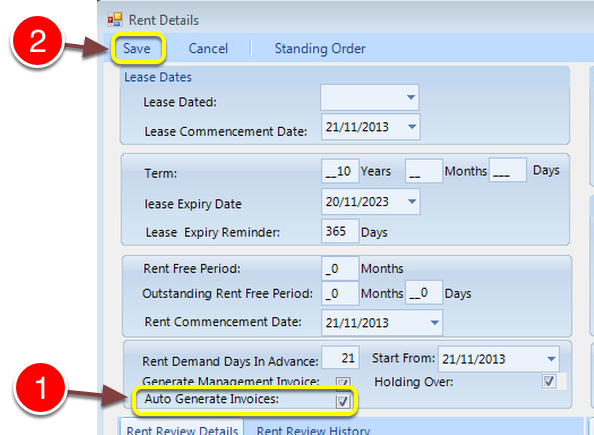
1: Confirm the Auto Generate Invoice check box is ticked.
2: Click Save – the details will Save and the window will close.

1: Click OK to close the Edit Unit window.
Open the Invoice Generated by Company
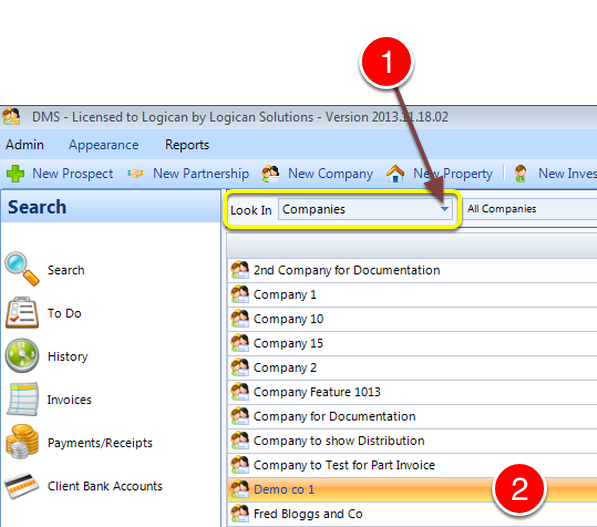
1: Change Look In to Companies – a list of Companies will open.
2: Double click the required Company – the Edit Company window will open.
Open the Template
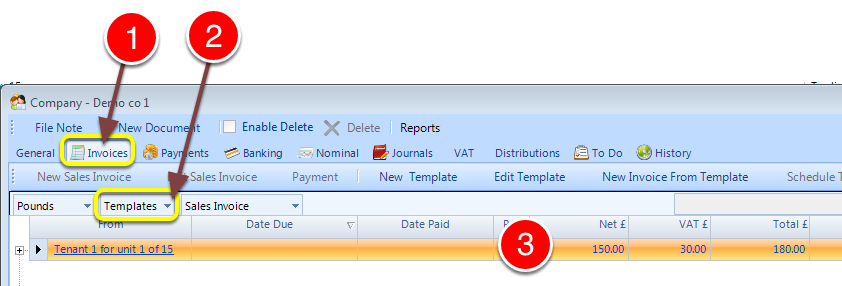
1: Select the Invoice tab – the Invoices window will open.
2: Select Templates from the drop down list – a list of available Templates will open.
3: Double click the required template – the Invoice window will open.
Raise the Invoice
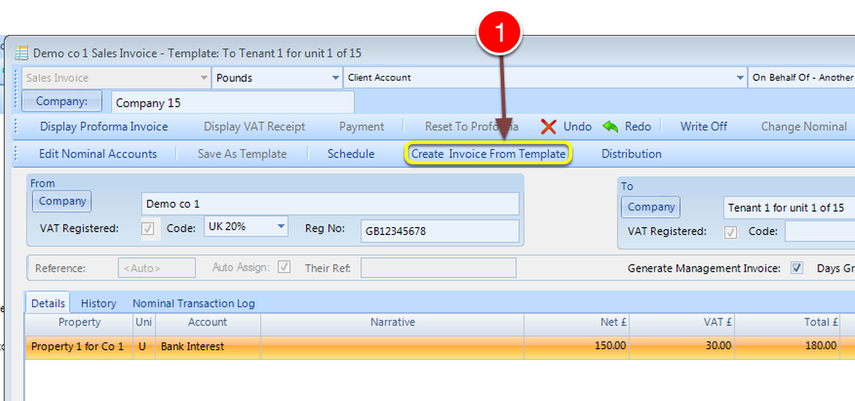
1: Click Create Invoice From Template – the Invoice window will open.
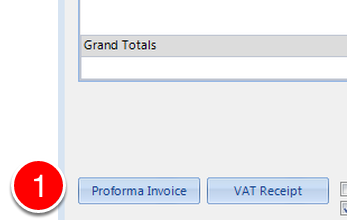
1: Click Proforma Invoice – the Invoice will be raised.