Invoice Arrears Notes
LogiPro enables you to add notes as well as export the list of notes to enable you to track any invoices that are in arrears.
Add Notes from the Invoices List/Tab
From any Invoices list/tab, filter the list to Overdue.
Note: From the main Invoices list, you must also filter the Group By to either Invoice Totals or Invoice Details.
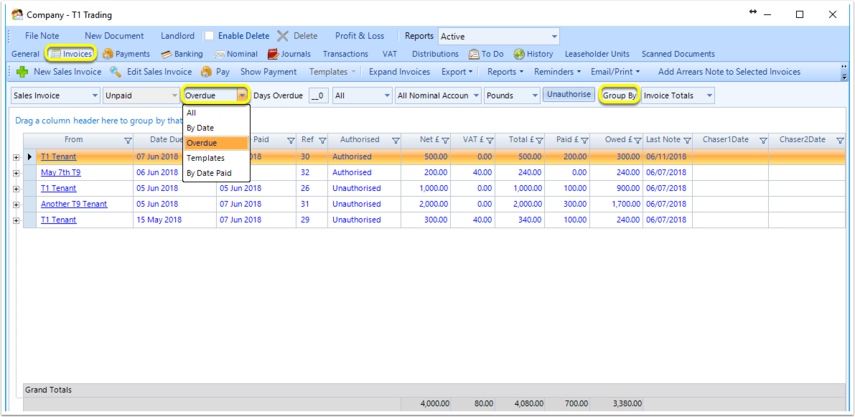
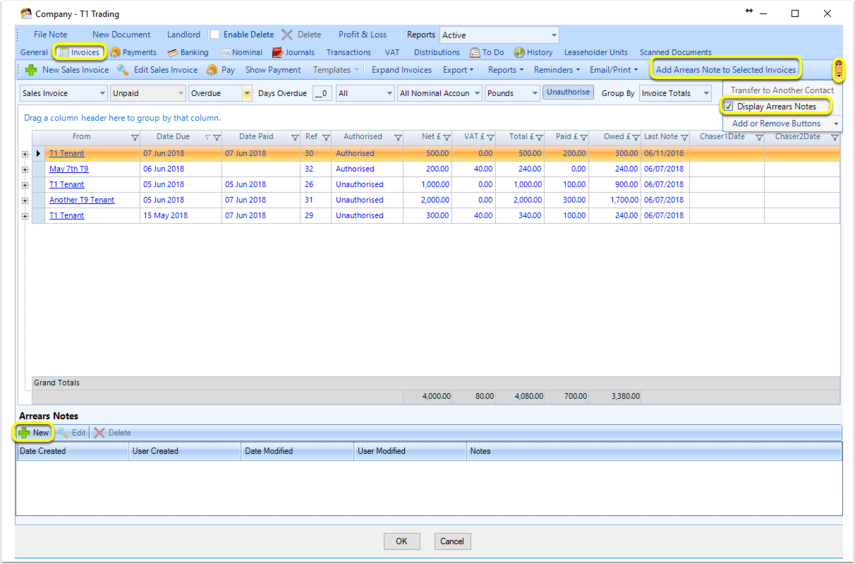
Upon filtering the invoices to Overdue, the Add Arrears Note to Selected Invoices button and Display Arrears Notes checkbox are enabled.
Tick Display Arrears Notes to display the Arrears Notes panel at the bottom of the screen.
Select an invoice/invoices and click Add Arrears Note to Selected Invoices to add notes to single or multiple invoices or select a single invoice and click New from the Arrear Notes section at the bottom of the screen to add a note to a single invoice.
Add Notes from Within an Invoice
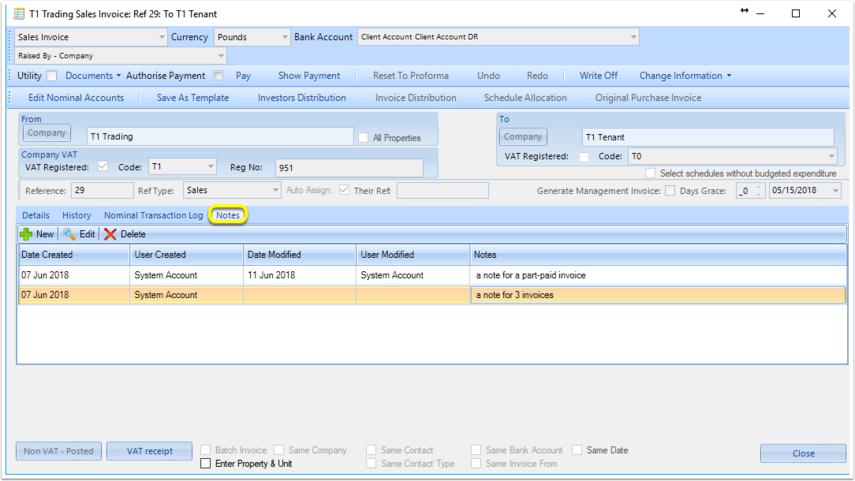
Open an invoice.
From the Notes tab, you can Add, Edit or Delete notes.
Edit/Delete Arrears Notes
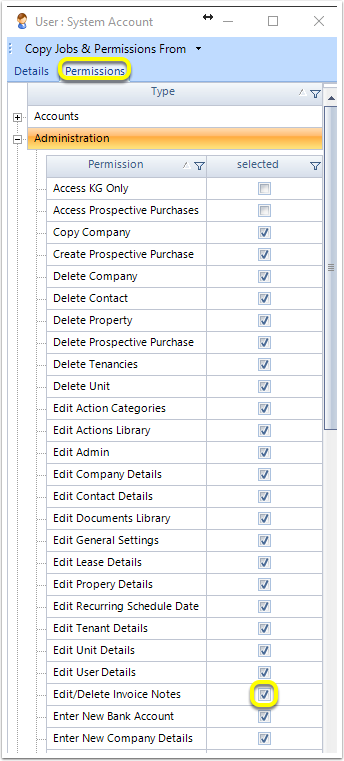
In order to edit/delete an arrears note, you must have the permission Edit/Delete Invoice Notes ticked from the Admin > Users > User > Permissions > Administration.
Export Your Arrears Notes
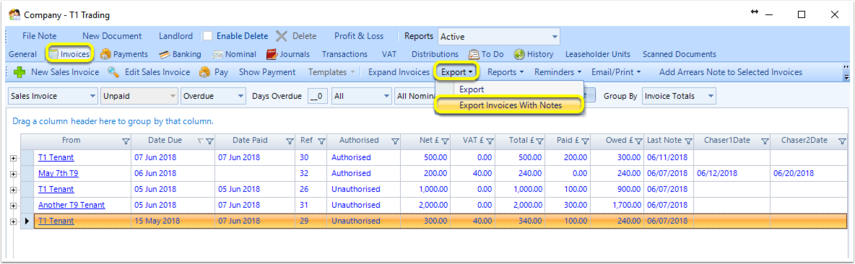
From the Invoices list/tab, click Export > Export Invoices With Notes to export your notes to Excel.
Introduced in version 2018.6.14.5071 on 20/6/18
\