Recurring Payments
This feature is used to set up payments that need to be generated on a regular basis. Recurring Payments is available on the Company, Property, Contact and Main Payments list levels (not on an Investor level).
Note: This feature must be enabled by a Logican Admin user.
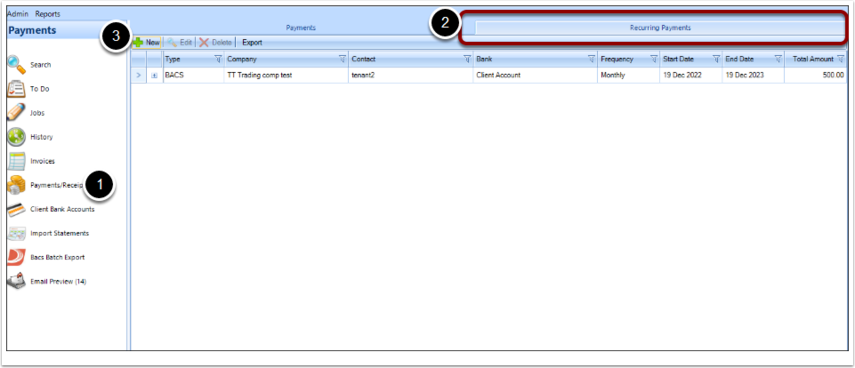
- Go to the main Payments/Receipts list
- There is a Recurring Payments sub-tab, click on it
- Click New
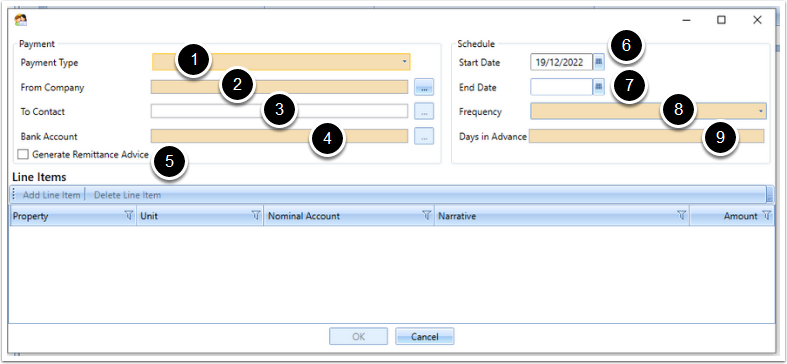
New Recurring Payment window opens
- A Payment Type must be selected.\ Only BACS or Bank Payment Out options are available for the Payment Type.
- A Company must be selected
- Contact\ This may be left blank to allow for the possibility to set up recurring bank payments where no Contact is necessary.
- A Bank Account must be selected
- Generate Remittance Advice tick-box\ When this is ticked, a Remittance Advice email is generated when the payment is allocated against an Invoice.
- Start Date\ This is automatically set to today's date but can be changed to any date the Recurring Payments should start from.
- End Date\ This can be left blank to generate the Recurring Payment indefinitely.
- Frequency\ A frequency must be selected. A list of all frequencies that are available for actions are available for selection here.\ This sets how frequently the Recurring Payment will be scheduled for (e.g. monthly)
- Days in Advance\ The Recurring Payment To-dos will be generated, the number of days in advance specified here, before the date the payment is for.
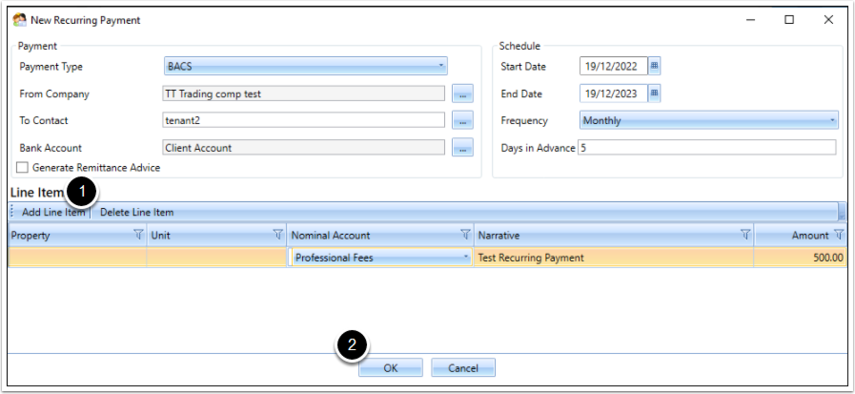
- Add Line Item\ Set the Property, Unit, Nominal Account, Narrative and Amount for the Recurring Payment.\ Multiple Line Items may be added here.
- Click OK to save
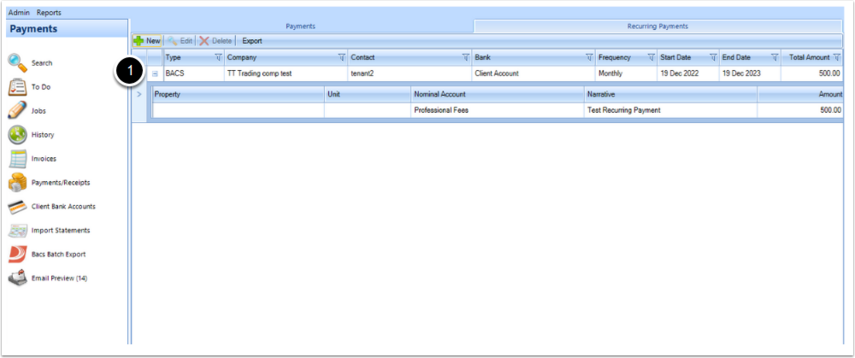
- The Recurring Payment is now saved and added to the Recurring Payments list\ The list view is expandable. Clicking to expand shows the Line item details of the Recurring Payment.
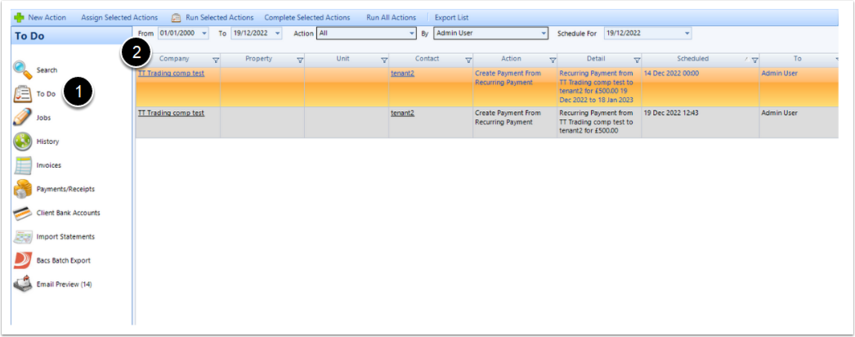
- Go to the To-Do list
- The To-Do's generated by the Recurring Payments will be listed here.
- Running the individual To-Do creates a Payment for that period with the data from the Recurring Payment.
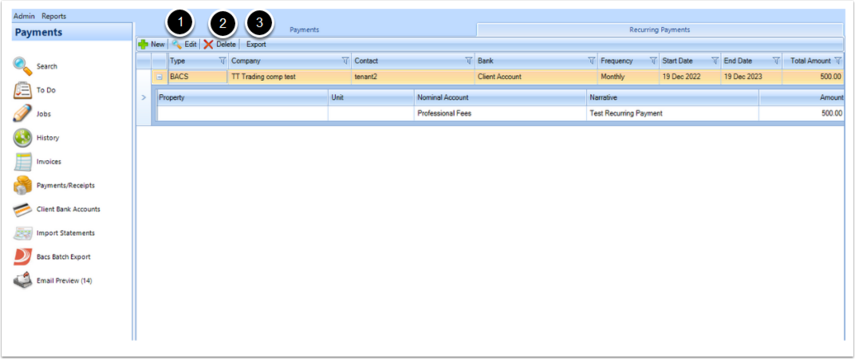
- It is possible to Edit an existing Recurring Payment\ Changes made will apply to To-Do's that have not yet been run.\ If the End Date is changed to an earlier date, any To-Do that is no longer relevant will be removed from the To-Do list.
- It is possible to Delete an existing Recurring Payment\ Any To-Do related to the Recurring Payment that has not yet been run is deleted when the Recurring Payment is deleted.
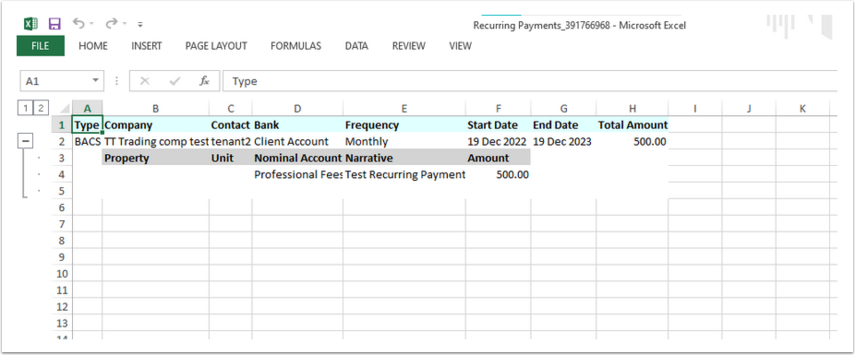
- It is possible to Export the list of Recurring Payments\ Any column filters that are applied to the list when exporting will apply to the export as well.