How to copy Actions and Documents from one Claim Type to another
Create the New Claim Type
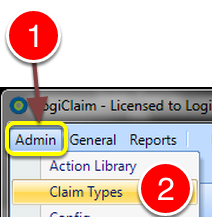
1: Click Admin from the menu.
2: Select Claim Types from the drop down list.
Create a New Claim Type
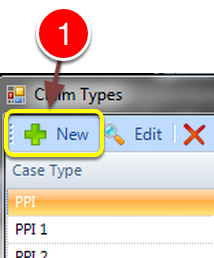
1: Click New - the New Claim Type window will open.
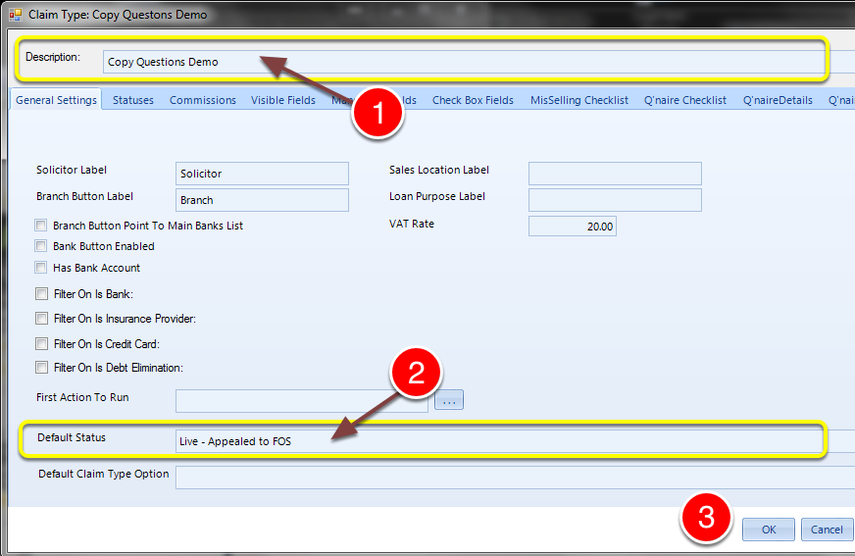
1: Give the Claim Type a name.
2: Choose a default Status.
3: Click OK to save the data and close the window.
Open the Questionnaire Utility
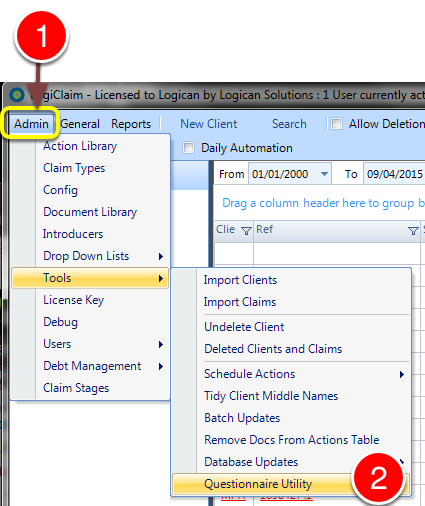
1: Click Admin from the menu.
2: Select Tools --> Questionnaire Utility from the drop down list - the Questionnaire Utility will open.
Select which Actions and Documents to Export
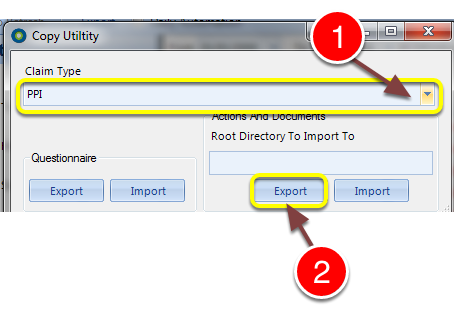
1: Select the Claim Type to copy the Actions and Documents FROM.
2: Click Export - the Microsoft Windows Explorer navigator will open.
Give the export a file name
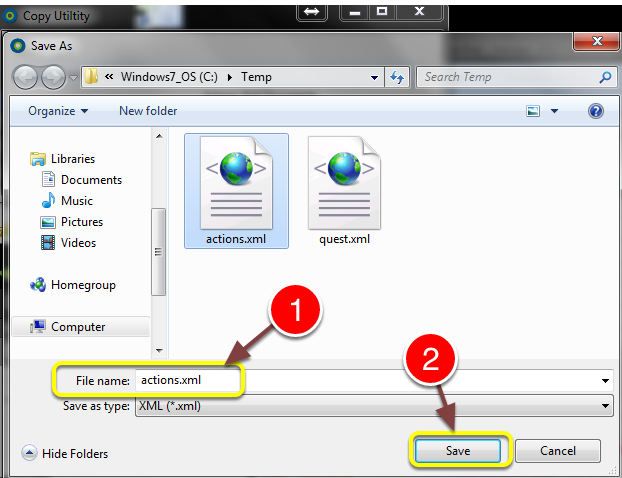
1: Give the file a name.
2: Click Save - the Export will take place.
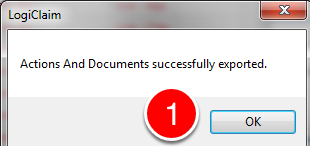
1: Click OK to clear the message.
Select the Claim Type to copy the Actions and Documents to
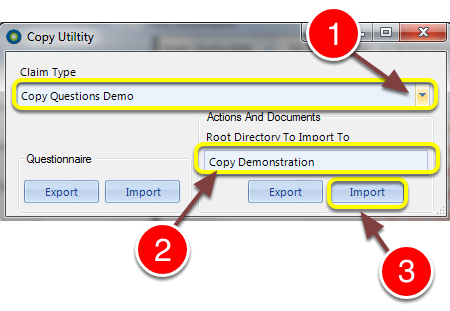
1: Select the new Claim Type to copy the Questions to.
2: Type a Root Directory description for the Actions and Documents to be copied to.
--- Note: Actions and Documents set to "All Claim Types" will not be copied.
3: Click Import - the Microsoft Windows Explorer navigator will open.
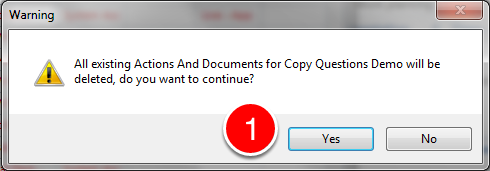
1: Check you have selected the correct Claim Type and then click Yes to continue or No to abort.
Select the correct file
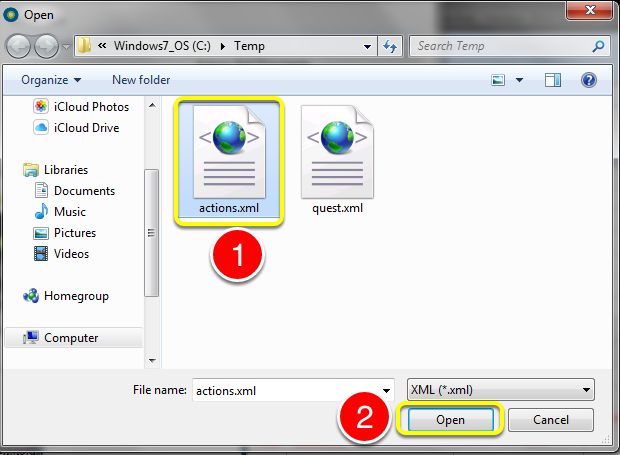
1: Select the required file.
2: Click Open to begin the Import.
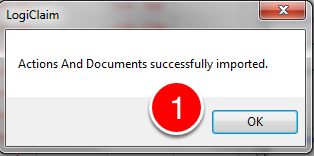
Click OK to clear the message - the Actions and Documents are now imported into the selected Root Directory.
Introduced in version number 2015.4.16.1398