How to use the Report Builder
Info
You need to know SQL commands to use this feature.
Select the Report Builder from the Menu
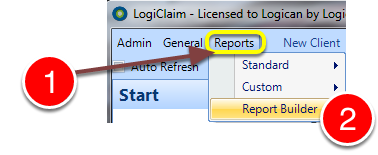
1: Select Report from the Menu.
2: Select Report Builder from the drop down list - the Report Builder window will open.
Create a New Report
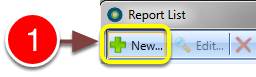
1: Select New - the New Report window will open.
Name the Report and Create a Filter
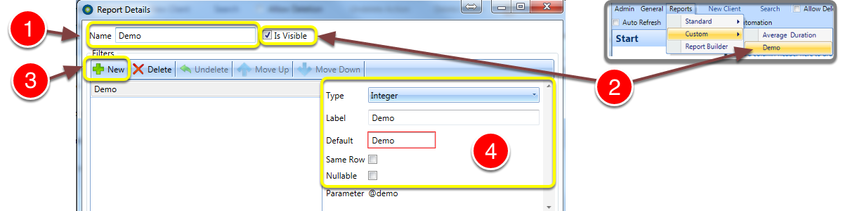
1: Give the report a Name.
2: If want this report to be included in the Report--> Custom drop-down menu, tick the Is Visible check-box.
3: Click New to create a New Filter.
4: Select the parameters for the filter.
Create a Tab - You need to know SQL commands here

1: Click New to create a new Tab.
2: Name the Tab.
3: Type the required SQL command.
Save the data
1: Click OK to Save the data.
Run the report
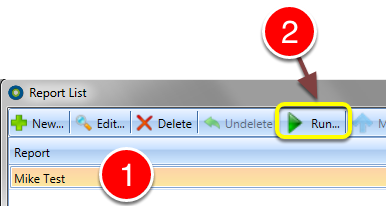
1: Click the Report to Run.
2: Click the Run button - the report will run.
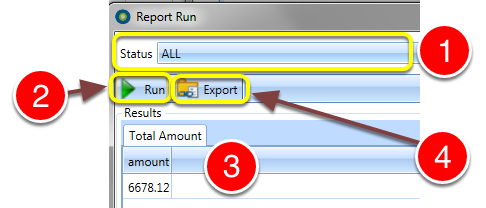
1: If a filter is available, you can select the required data.
2: Click Run - the query will run.
3: The results will be shown.
4: If required, you can export the data to a CSV file.