How to add a Scanned Document to a Purchase Invoice
Open an Invoice
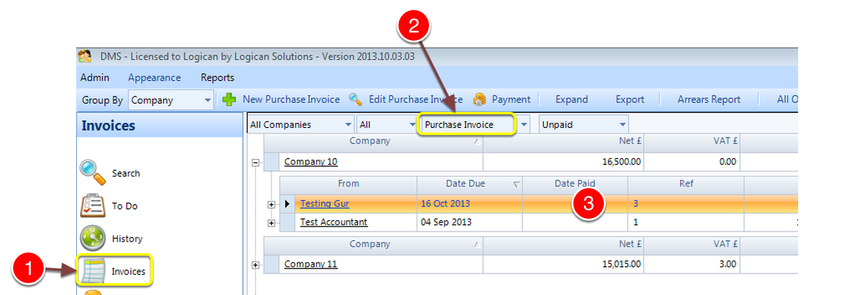
1: Click Invoices from the Side Menu.
2: Select Purchase Invoice from the drop down list - a list of invoice will be displayed.
3: Double click an invoice to open it. - Note: The invoice must have at least 1 item on it and that Item must have a value greater than 0 (zero).
Link the Scanned Document
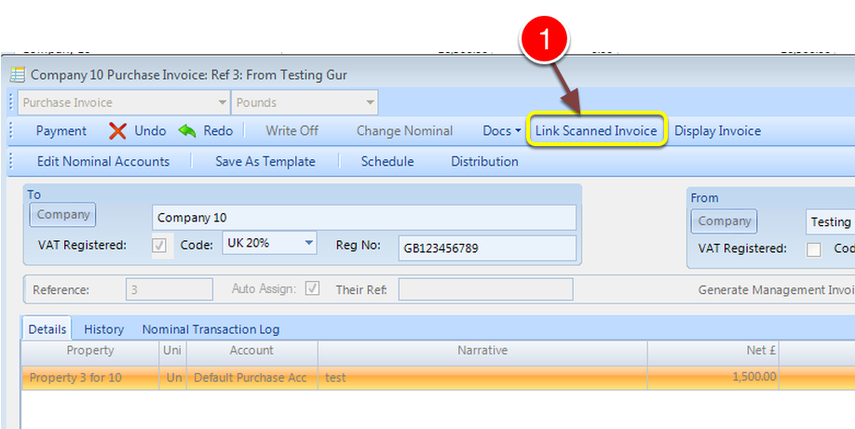
1: Click Link Scanned Invoice - the Microsoft Windows Navigation window will open.
Navigate to the required document
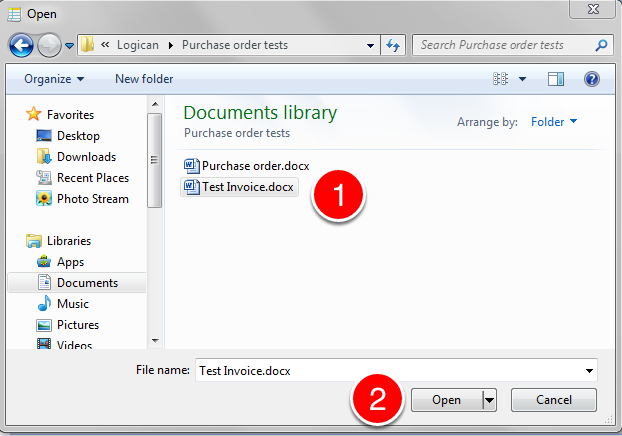
1: Navigate to the required document. Click the required Scanned Invoice.
2: Click Open - the Microsoft window will close.
View the Attachment
The attachment can be viewed in 2 ways
Directly from the Invoice window
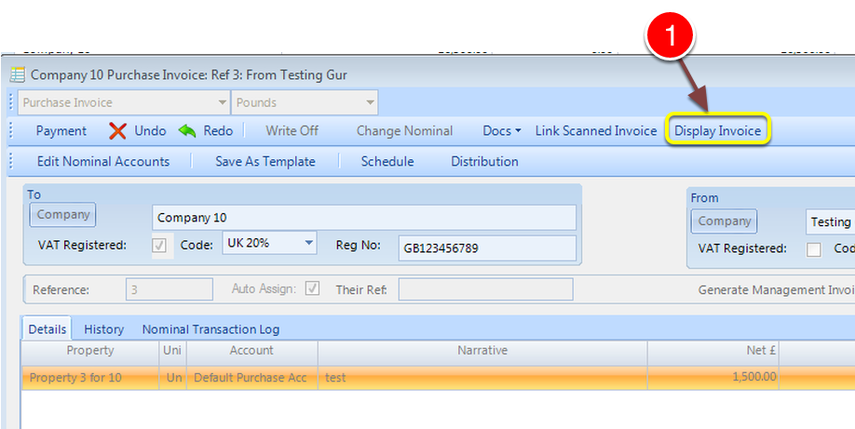
1: Click Display Invoice - the attachment will open.
or from the History
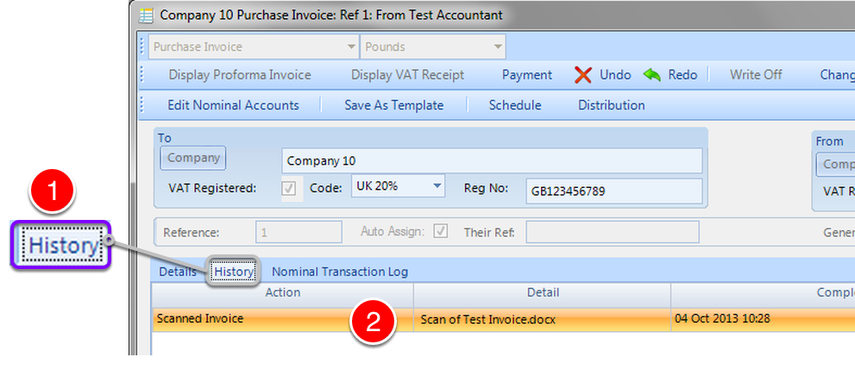
1: Click the History tab.
2: Double click the Scanned Invoice - the attachment will open.