How to Configure the Job Admin drop down lists
Open the Job Admin window
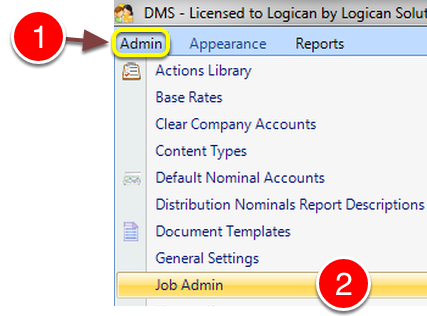
1: Click Admin from the Menu.
2: Click Job Admin from the drop down list - the Job Admin window will open.
Add a Job Type
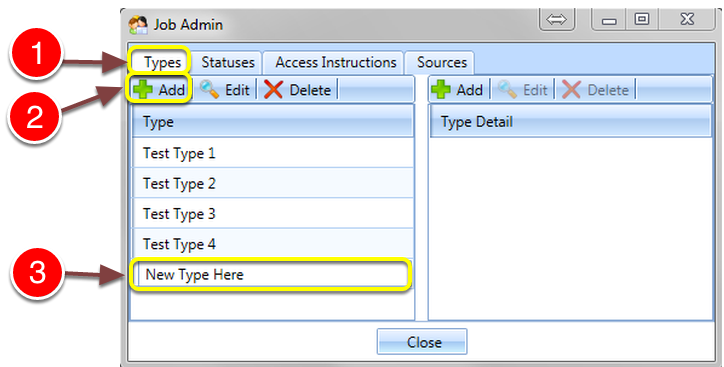
1: Click the Types tab - the Types window will open.
2: Click Add - a new line will open for Editing.
3: Type a description for the new Job Type.
Add Type Detail
Note: Type Details cannot be added to NEW Job Types until the close button is clicked and the window is re-opened.
-------- This is because the data is not written to the database until the window is closed.
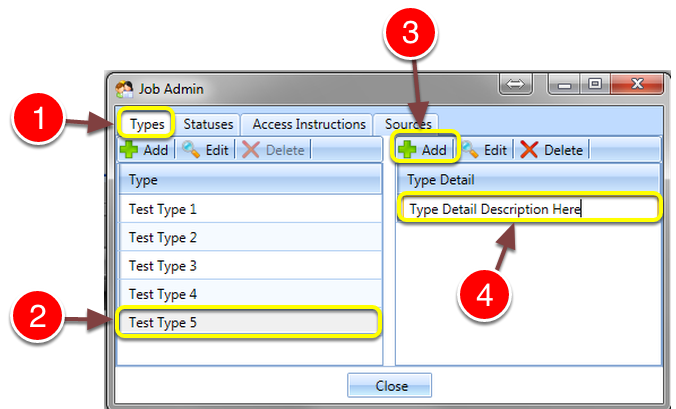
1: Click the Types tab - the Types window will open.
2: Select the Type to add a detail to.
3: Click Add on the Type Detail column - a new line will open for Edit.
4: Type in the Detail description.
Add a Status
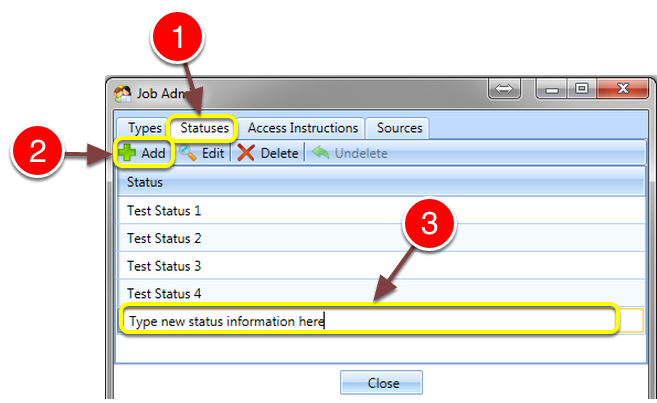
1: Click the Statuses tab - the Statuses window will open.
2: Click Add - a new line will open for Edit.
3: Type a Status description.
Add Access Instructions
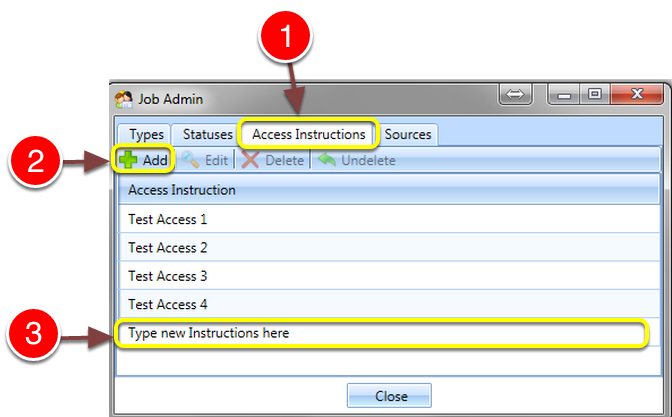
1: Click the Access Instructions tab - the Access Instructions window will open.
2: Click Add - a new line will open for Edit.
3: Type new Access Instructions.
Add Sources
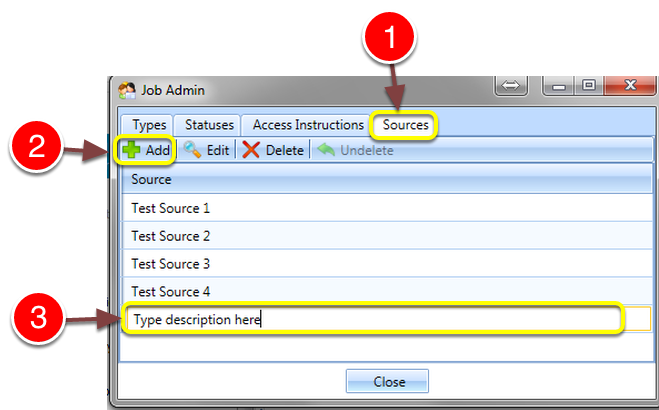
1: Click the Sources tab - the Sources window will open.
2: Click Add - a new line will open for Edit.
3: Type the Sources description.
Close the window
1: Click Close to Save the data and close the window.