Document Management
The Document Management system categorises documents so they are easy to find.
Document Types
The Document Types are the various types of documents that can be generated by LogiPro. For example, statements sent to an investor, invoices or statements sent to a tenant, and reminders sent to a user.
Adding an Attachment Document Type
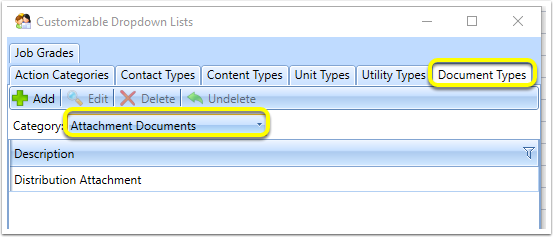
Many Document Types are system generated, however custom Attachment Document Types can be added from the Admin > Customize Dropdown Lists > Document Types tab. In the Category List, select Attachment Documents.
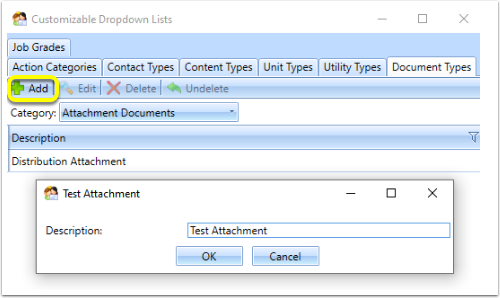
Click Add to add a new Attachment Document Type and enter the description.
Note: Only user created Document Types can be deleted.
Document Type Groups
Document Type Groups are the categories that document types are grouped under.
Create Groups
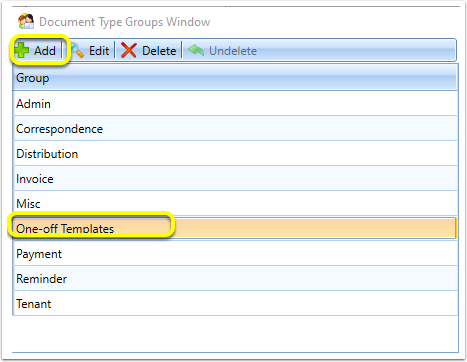
To add additional groups to the default existing list, from the Admin > Customize Dropdown Lists > Document Types tab, in the Category List, select All System Generated > Edit Groups. The Document Type Groups Window displays.
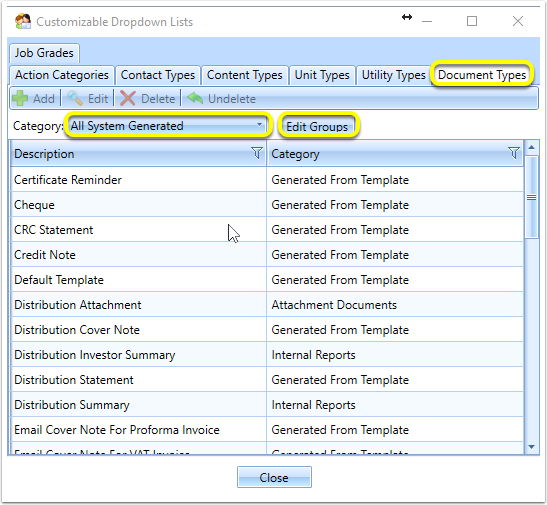
Click Add to add a new group and enter the group name.
A corresponding email Document Type auto-generates for the new group. This email document type cannot be deleted.
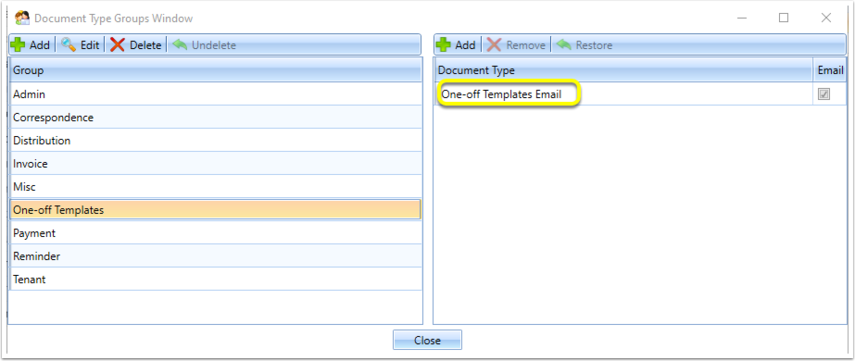
Additional Document types can be added to the group. Document Types that were added can later be removed from the group.
Document Templates
All document templates are automatically related to a corresponding document type with the same name. Documents generated from a document template, will be classified as having a Document Type with a name identical to the document template from which it was generated. For example, if a document is generated from a template called Job Instruction, the generated document will have a document type of Job Instruction.
New Document Generation
Document Group
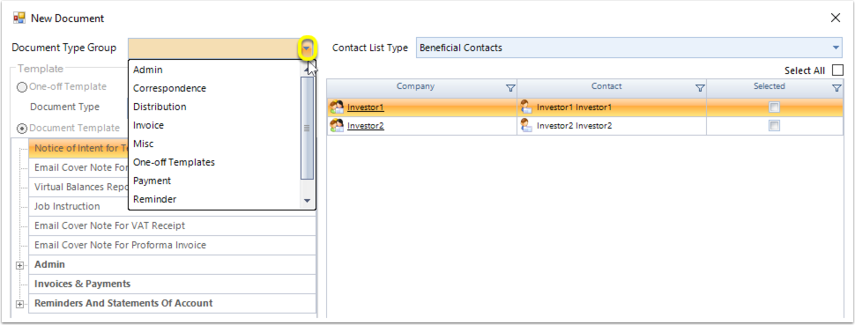
In the New Document window, select the Document Type Group of the document(s) to generate. This is the top level category of the document/email that will be generated.
Document Templates
Only templates with document types that are part of the Document Type Group selected will be available for selection.
For one-off templates, a Document Type ** must be explicitly selected, as it is not using a pre-defined template which is implicitly associated with a corresponding document type. **
When selecting a document template, it is not necessary to select a Document Type.
Attachments
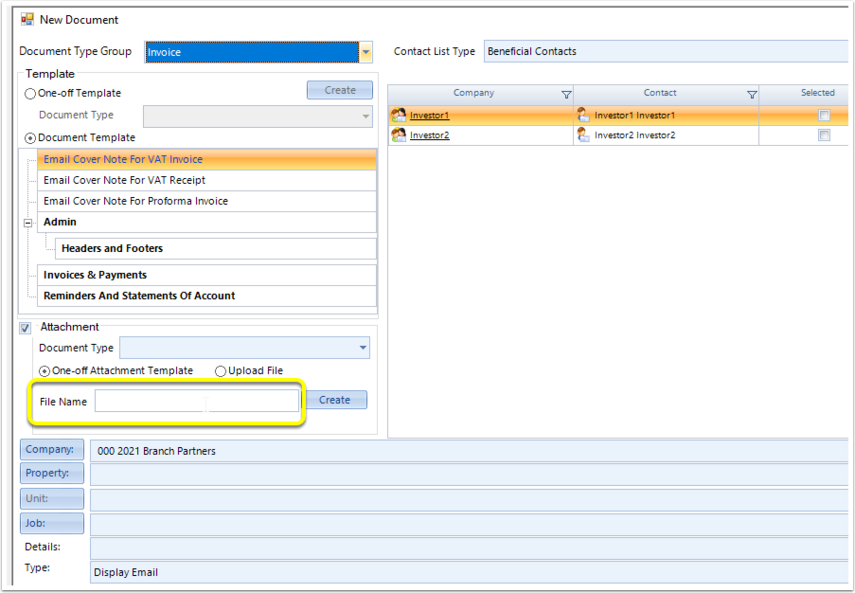
If an attachment is being included in the email, the **Document Type ** of the attachment must be specified. Only document types that are part of the Document Type Group selected will be available for selection.
When attaching a One-off Attachment Template, a File name must be specified.
Manual Individual Attachments: If documents are manually attached to an email in the Email Details window, after generating an email, manually assign a Document Type to the attachment from the dropdown list in the Email Details window.
History
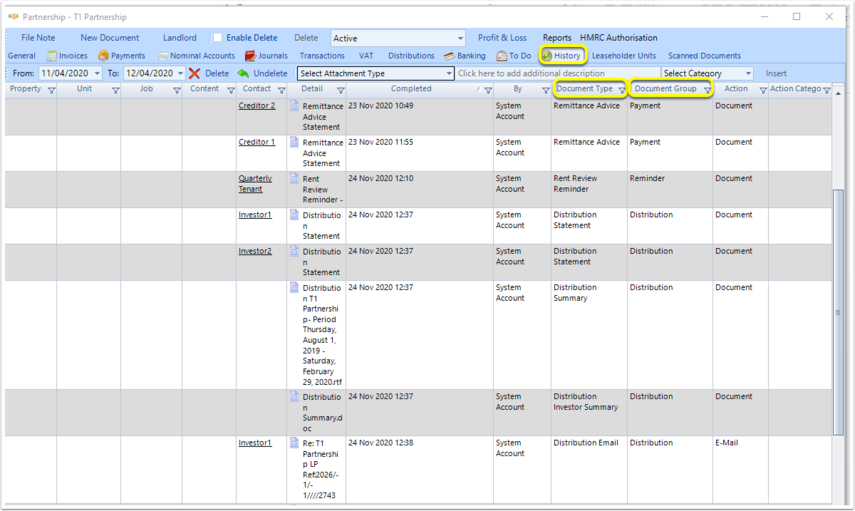
The Document Type and Document Type Group are viewable in the History of a company or contact.
Email
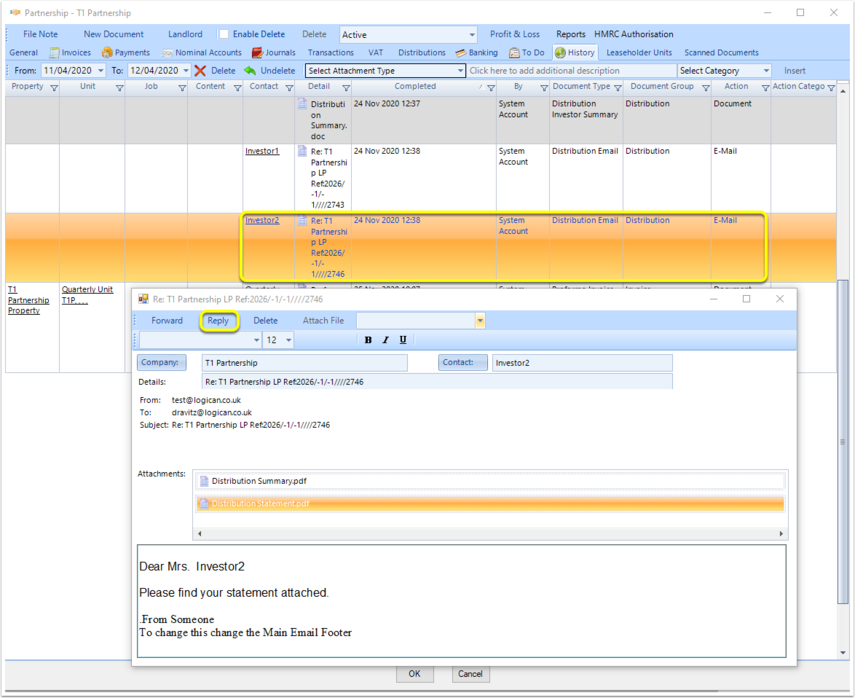
Emails can be viewed from the History window by double-clicking an email. The user can reply to / forward emails by clicking the appropriate menu item.** **
Attach Files after Performing a Distribution
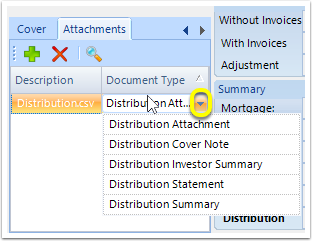
From the Distribution window Attachments tab, click the + button to navigate to the file you want to add to the distribution.
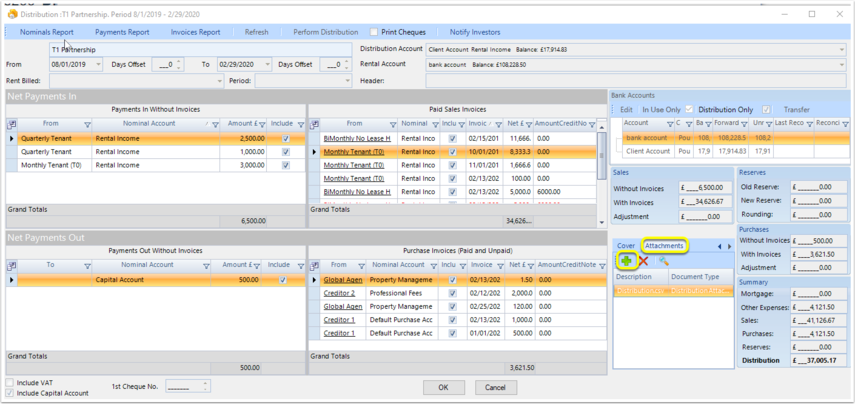
The Document Type can be changed to any type in the Distribution Document Type Group. Upon selecting Notify Investors, the attachment is attached with the other Distribution documents in the email.