How to Create a New Document
Open the Document Library
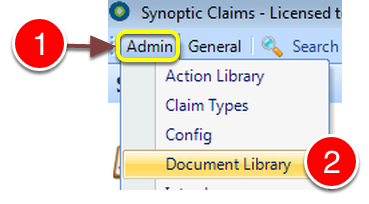
1: Click Admin from the menu.
2: Select Document Library from the drop down list - the Document Library will open.
Select a Location for the New Document
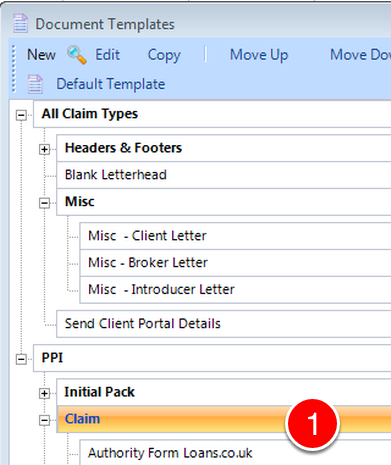
1: Select where the new document should be filed.
Open the New Template Window
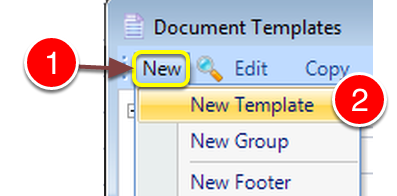
1: Click New from the menu.
2: Select New Template - the New Template window will open.
Set up the Letter
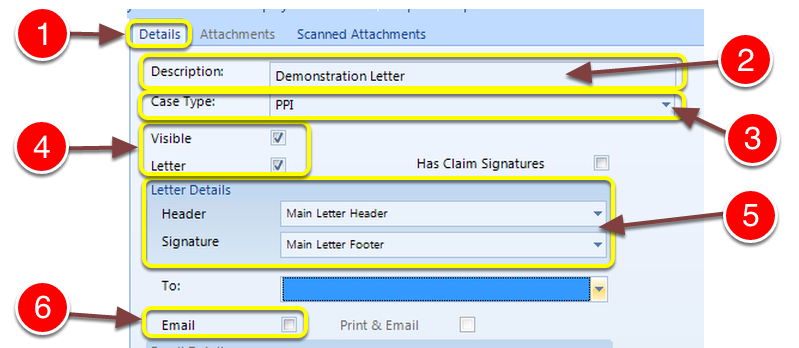
1: Click the Details tab - the Details window will open.
2: Key in a Description for the letter.
3: Select a Case Type from the drop down list.
4: Mark the document as a Letter and make it visible so that users can see it in the Document Library.
5: Choose a Header and Footer.
6: Untick Email, as this document is a letter.
Type the Document
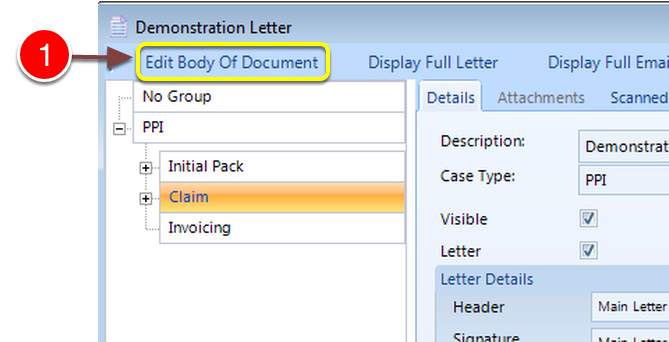
1: Click Edit Body Of Document - Microsoft Word will open.
Type the Letter
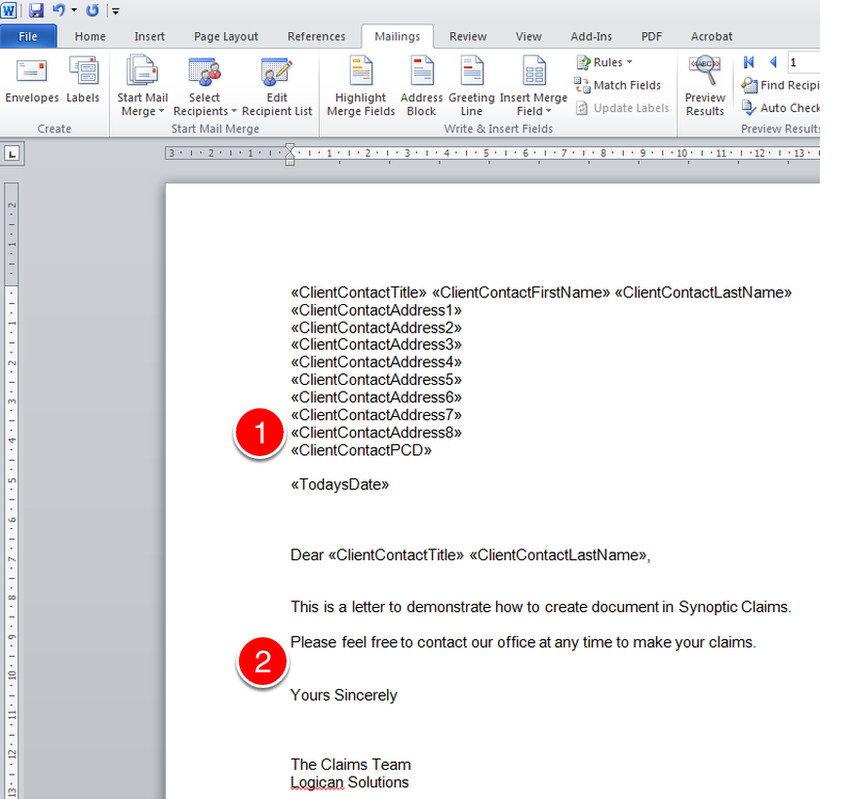
1: If required, add merge fields to the letter - click here to see how.
2: Type the body of the letter.
Press CTRL+S to save the letter and then close Microsoft Word.
Close the Window
1: Click OK to close the window and save the data.