Create Invoice and Credit Templates
Info
Using templates make a repetitive process much easier, faster and smoother.Templates can be created from the Invoice Template screen, a Company Invoice tab, a Contact Invoice tab or from an existing Invoice or Credit Note.
From the Template Screen
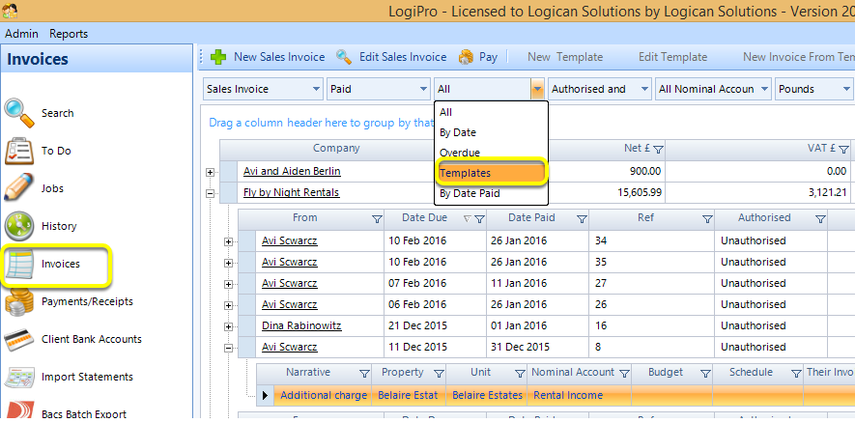
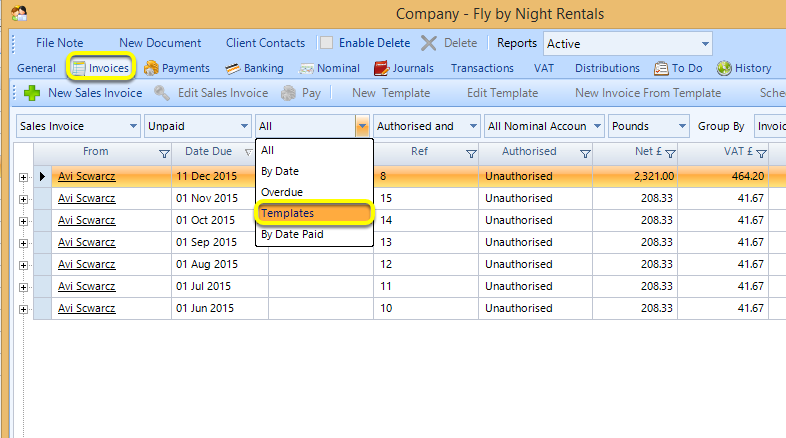
1. Select Invoices.
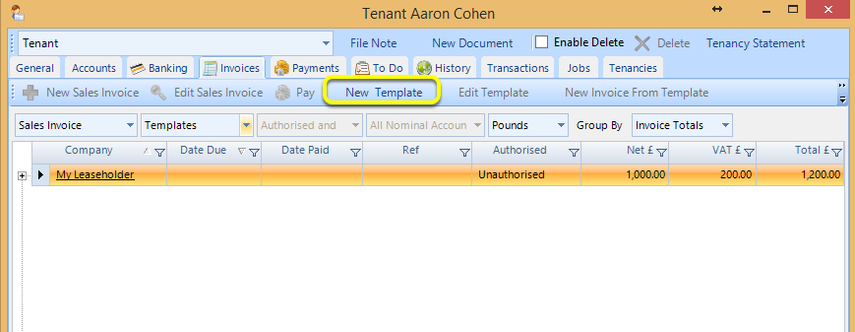
2. From the drop down list, select Templates. The template list displays.
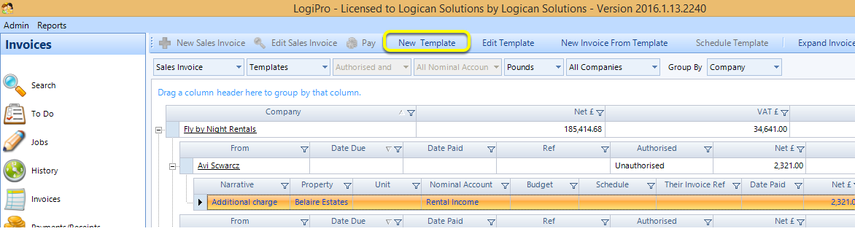
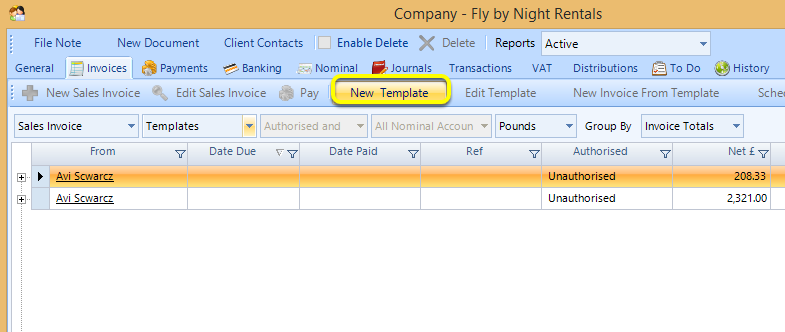
Click New Template. The Template window displays.
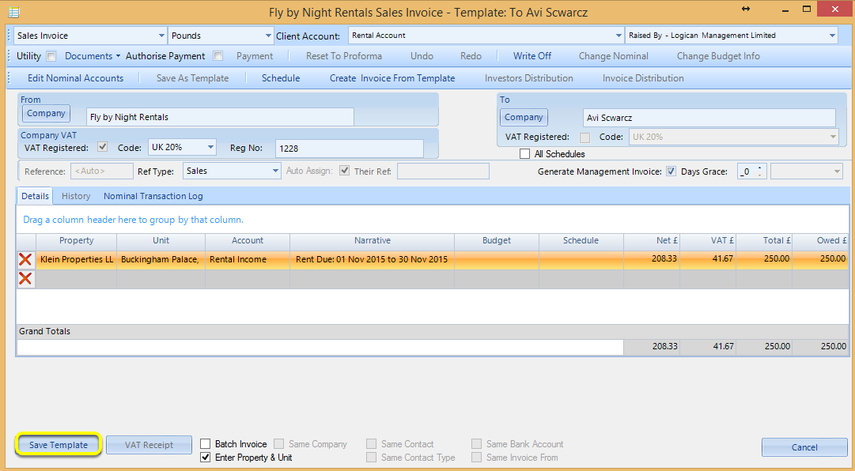
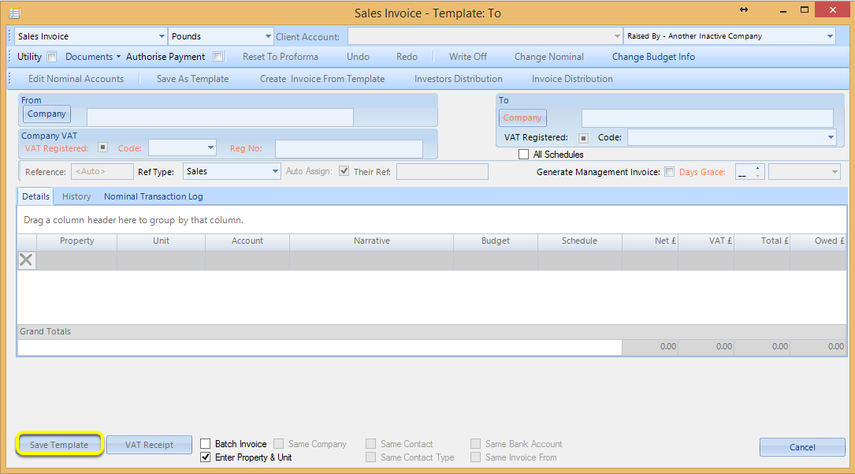
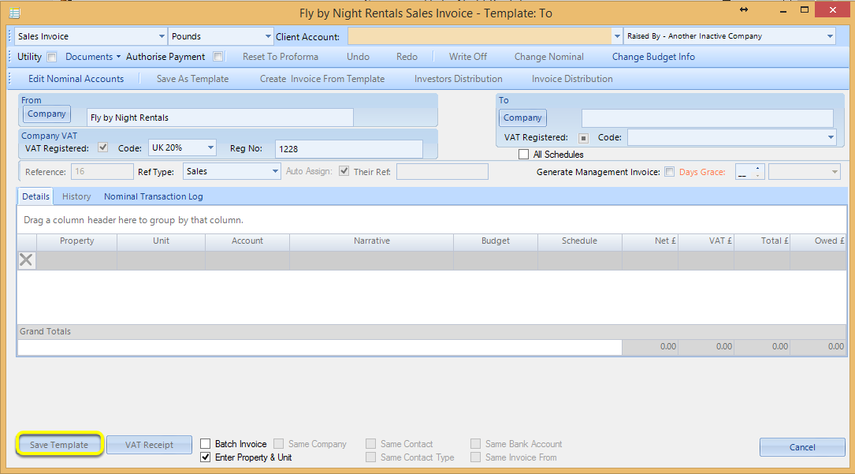
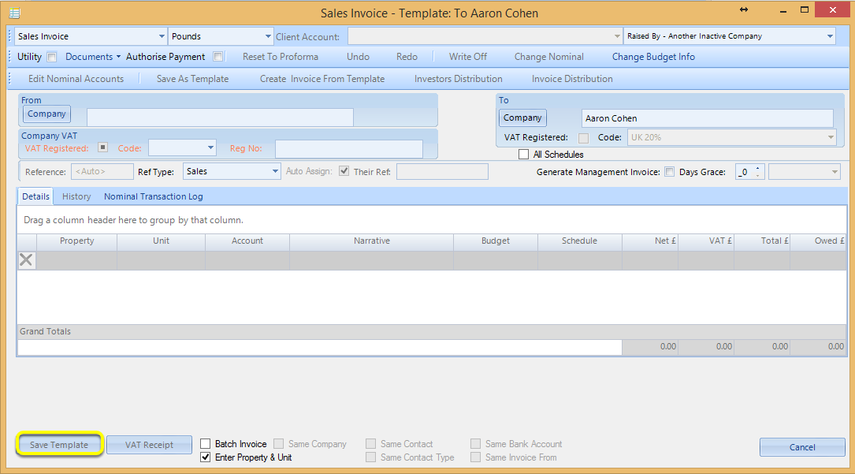
Enter the relevant data and click Save Template. The template is now saved.
From a Company Invoices Tab
1. Open a company and select the Invoices tab.
2. From the drop down list, select Templates. The template list displays.
Click New Template. The Template window displays.
Enter the relevant data and click Save Template. The template is now saved.
From a Contact Invoices Tab
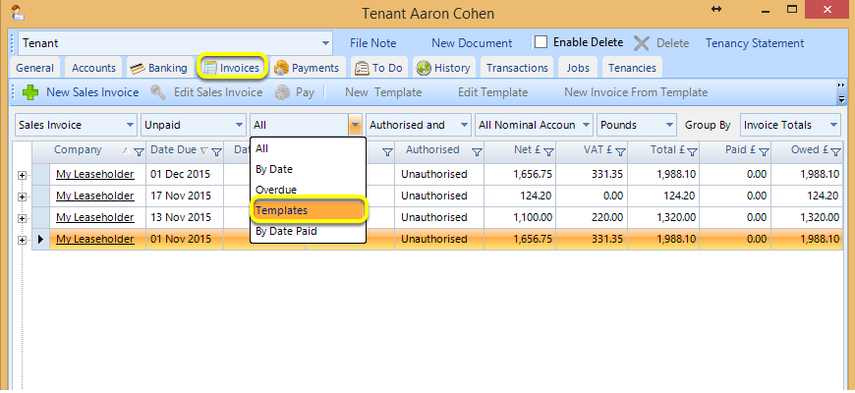
1. Open a contact and select the Invoices tab.
2. From the drop down list, select Templates. The template list displays.
Click New Template. The Template window displays.
Enter the relevant data and click Save Template. The template is now saved.
From an Existing Invoice or Credit Note
Open the invoice or credit note and click Save As Template. The template window displays.
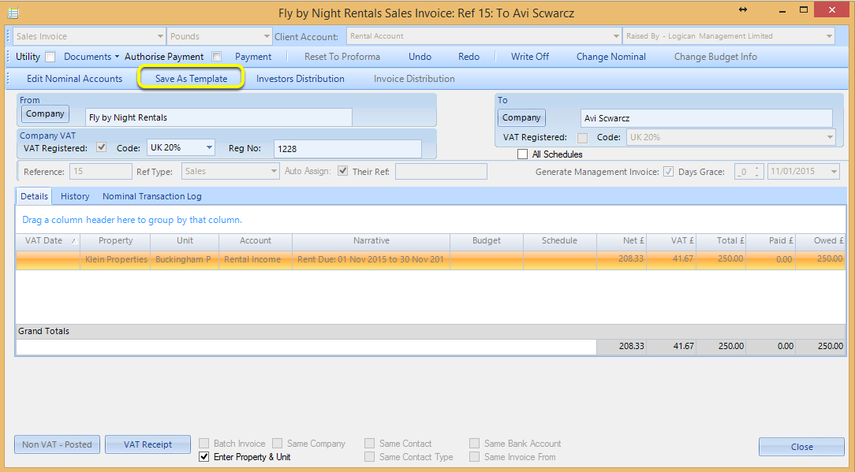
Enter any changes, if relevant, and click Save Template. The template is now saved and can be reused.
Note: The template can be viewed from any Invoices screen/tab by clicking the All drop down list and selecting Templates.