How to Set Up an Action to Print Documents
Open the Action Library
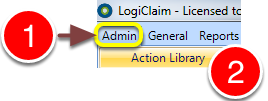
1: Click Admin in the menu.
2: Select Action Library from the drop down list - the Action Library will open.
Select the Required Action
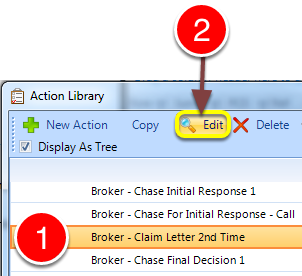
1: Select the required action.
2: Click Edit - the Action Library window will open.
OR Create a new action.
Add Documents
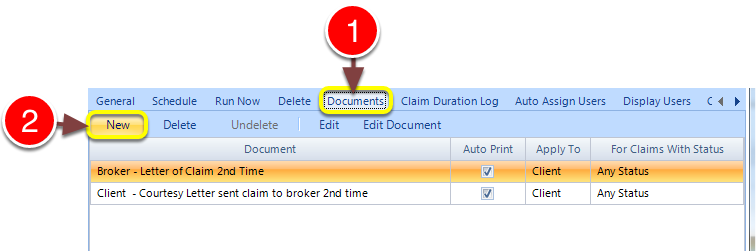
1: Click the Documents tab - the Document list will open.
2: Click New - the Document to Run window will open.
Choose the Document, Which Claim to Apply it to and Under What Circumstances
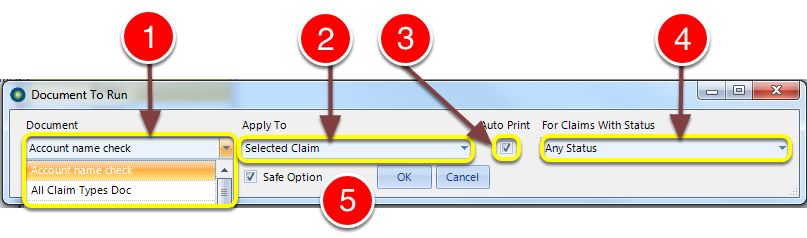
1: Select the required document from the drop down list.
2: Select which claim the document should run on. See below for available options.
3: Tick the Auto Print checkbox if the document should be sent directly to the default printer. If the checkbox is not ticked, the document will be created in a Microsoft Word document for editing and manual printing.
4: Select whether this document should run for all statuses or whether it should be status specific.
5: Click OK to save and close the window.
Available Options
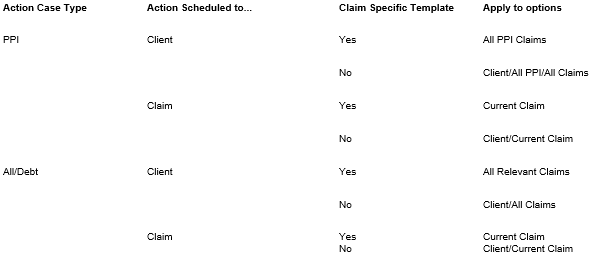
When a template is applied to the client, there is no option to run it dependent on a claim status.\ A specific claim type action cannot run other claim type documents. See the next step for override options.\ A claim document cannot be run against a client. See the next step for override options.